How do I install ClassWatcher?+
Install ClassWatcher directly from the Chrome Web Store. Once installed, the ClassWatcher icon appears in your Chrome toolbar.
- Find ClassWatcher in the Chrome Web Store (or use the install link from classwatcher.com).
- Click Add to Chrome and approve the install.
- Pin ClassWatcher to your toolbar — click the puzzle-piece Extensions icon and pin ClassWatcher so it's always visible.
- Open any Brightspace assignment or quiz page. The missing-work list appears on the page by itself — no account needed.
- Optional: click the ClassWatcher icon to open the panel and sign in with Google or email. That unlocks watch lists, messaging, contact history and export.
How do I import my class list?+
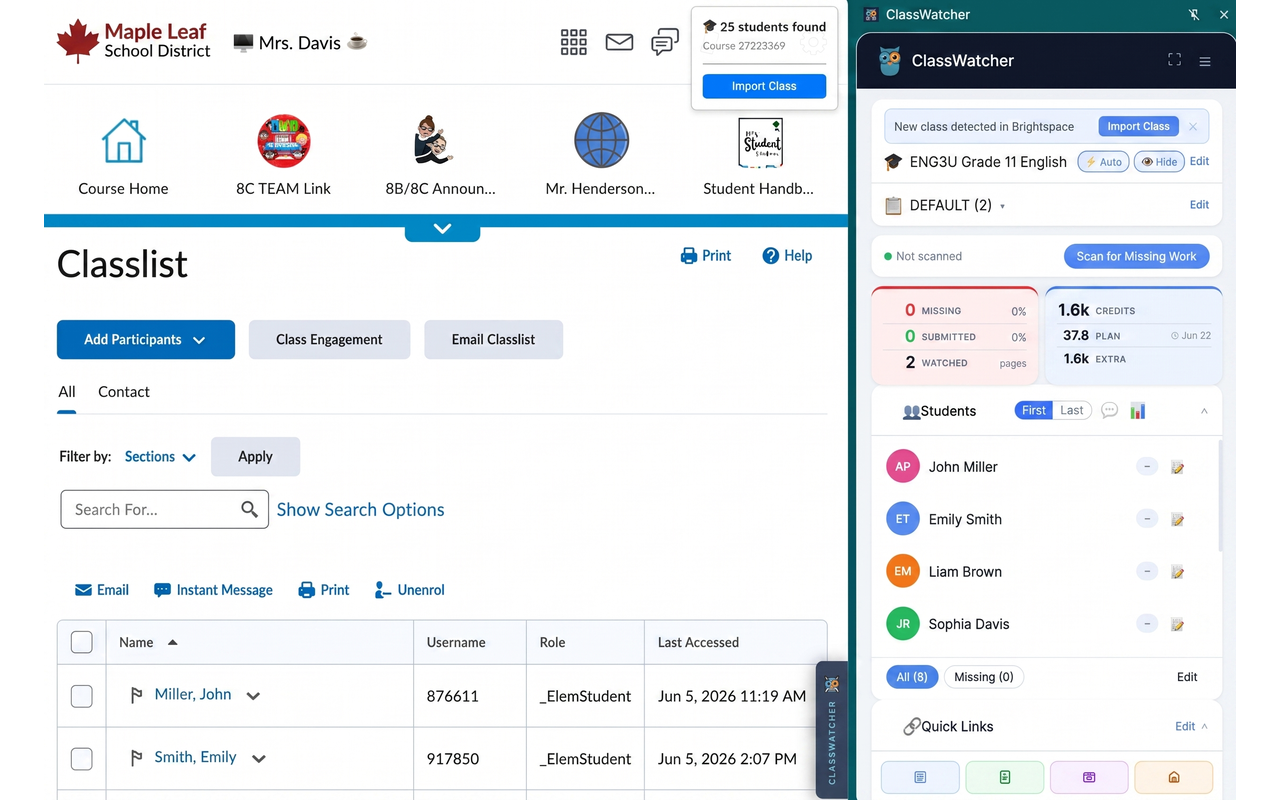
Navigate to your Classlist page in D2L Brightspace — the page that lists all enrolled students. ClassWatcher detects it automatically and shows an Import Class button in the overlay panel on the page.
Click Import, confirm the student names look right, and your class is saved. ClassWatcher will now match these names against submission pages to find who's missing. Once imported, give your class a clear name (like "ENG3U Period 2") so it's easy to identify in the app.
What does "Where do you teach?" change?+
During onboarding, ClassWatcher asks where you teach: Elementary school, Secondary / high school, College / university, or Corporate / workplace training. Your answer sets who messages go to by default and how contacts are labelled — elementary and secondary default to messaging parents; college/university messages students directly (parent fields are hidden, but can be re-shown from the Students screen); corporate relabels contacts as Employee and Supervisor and messages employees.
It only changes labels and messaging defaults — your saved contact data is never touched. You can change it any time in Settings under "🏫 Where do you teach?".
My school uses a custom Brightspace domain — will ClassWatcher work?+
Yes. ClassWatcher supports custom Brightspace domains as of v2.4.0. If your school uses a non-standard URL (e.g., learn.yourboard.ca), here's how to enable it:
- Open the ClassWatcher app and go to ⚙ Settings.
- Enter your school's Brightspace URL in the Brightspace URL field and save.
- A blue banner will appear — click Enable ClassWatcher here →.
- Approve the Chrome permission prompt that appears.
- Reload your Brightspace tab — ClassWatcher will now activate on those pages.
This is a one-time setup per device. If you don't see the banner yet, make sure you're running extension version 2.4.0 or later.
Does ClassWatcher work on Safari or Firefox?+
Right now, ClassWatcher requires Chrome or Microsoft Edge (both work with the same Chrome Web Store extension). Here is where the others stand:
- Firefox — currently under development. Stay tuned!
- Safari — a Safari extension for Mac is something we're exploring. We don't have a release date to promise yet, so we won't give you one.
- iPad & iPhone — these can't run browser extensions at all. That's an Apple restriction rather than something we can build around, so there's nothing we can promise here. classwatcher.com/app does load in a tablet browser if you're signed in, but it's built for desktop widths — treat it as "works in a pinch".
In the meantime, if you're on a Mac or Windows, switching to Chrome or Edge for Brightspace takes just a minute.
Do I need an account to use ClassWatcher?+
No. Install the extension, open any Brightspace assignment or quiz page, and a box appears on the page listing the students who have not submitted — with the missing count, a first/last name sort toggle, and when it last updated. There is no sign-up, no credit card, no trial clock and no expiry, and you don't need to enter your school's Brightspace address for it to work.
What an account adds is the ability to act on that list: watch many pages and check them all in one pass, message parents or students, keep contact history, and export. Those are on the paid plans, from CA$8 a month.
In that mode the on-page list sends nothing to us: opening a page, checking who has not submitted, importing a class and sorting the list make no requests to our servers, and we receive no information about you, your school, your courses or your students. Three ordinary website visits are the only exceptions — see the privacy policy for exactly what those are.
Why are Watch This Page, Copy Names and Message Missing greyed out with a 🔒?+
Because you're not signed in. The list is free forever; the buttons that act on it are the paid part. Seven controls are locked until you sign in on a paid plan:
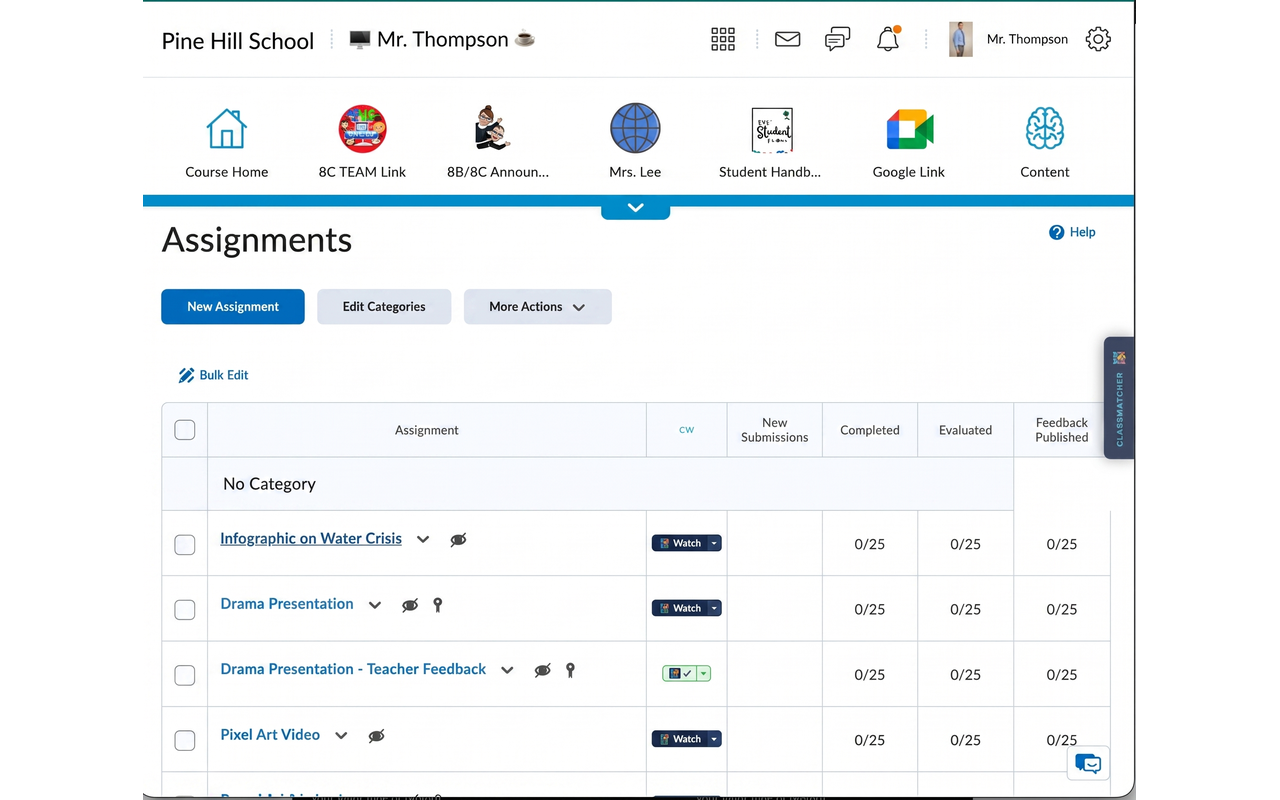
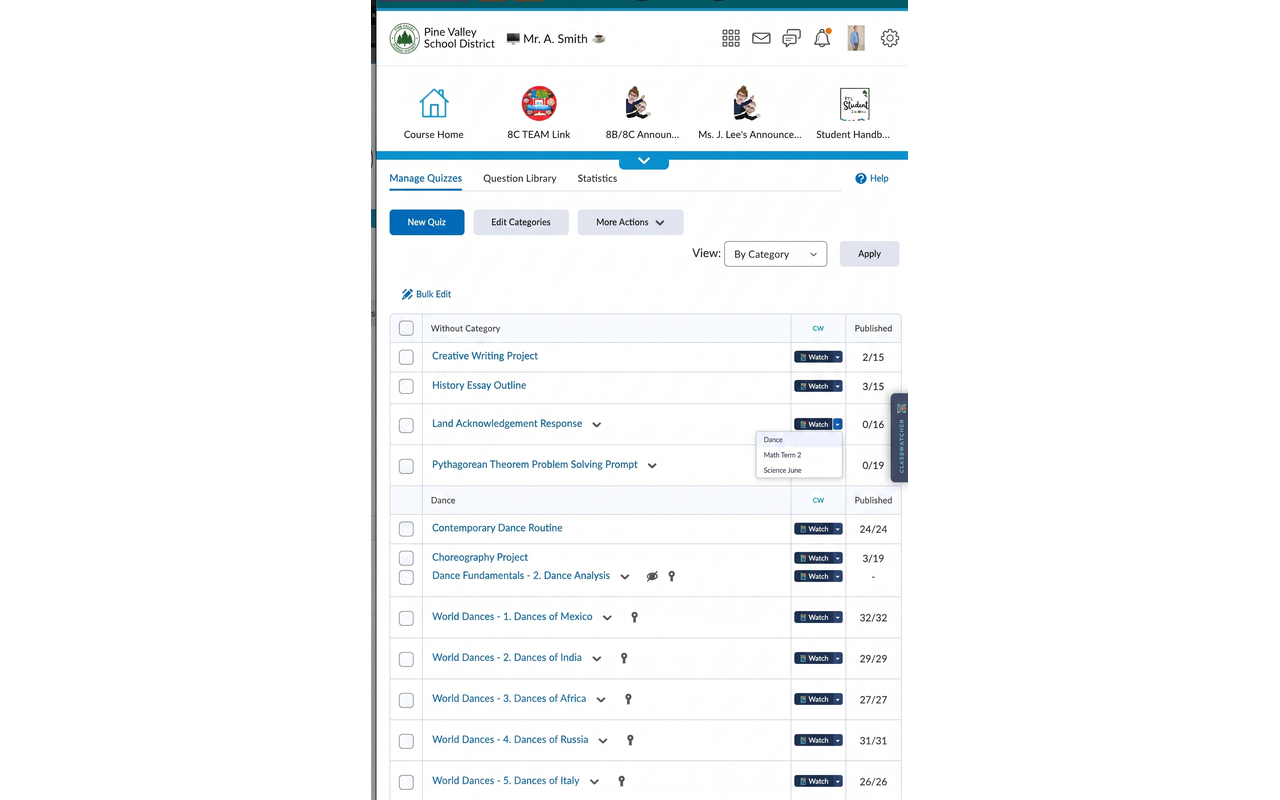
- Watch This Page — and the same Watch button wherever it appears: on Manage Quizzes, on Manage Assignments, and on the quiz edit page
- Copy Names and Copy Page URL
- Message Missing
- The per-student message, details and note buttons on each row
They stay visible and clickable on purpose — hover one and the tooltip tells you what it does and says "Sign in to unlock." Clicking opens the ClassWatcher panel so you can sign in there.
If you sign out, the extension goes back to free mode and the locks return. Nothing you saved is deleted.
ClassWatcher offered to import my class — what is that?+
To tell you who is missing, ClassWatcher has to know who is enrolled. The first time you open a page in a course it has no list for, it reads the roster from the course you're already in and shows a small card asking "Is this <your course>?", with the number of people and a role picker so you can bring in students without also importing teachers and support staff.
Nothing is saved until you click Yes. If the guess is wrong, click Not my class and nothing happens. If the roles look wrong, correct them in the picker before confirming.
The imported list is kept in your browser's extension storage on that computer. With no account, it is never sent to us and it does not sync to your other devices.
You can also import the old way, from the Classlist page itself (Course Admin → Class List), if you'd rather.
What is the ▶ Check link beside my quizzes?+
On Course Admin → Quizzes (Manage Quizzes) and on the quiz edit page, ClassWatcher adds a ▶ Check link beside each quiz. It takes you to that quiz's grade page — the page where the missing list appears — instead of the quiz edit screen that the quiz's own name link opens. Hold Ctrl (or ⌘) while clicking to open it in a new tab.
It's a shortcut, nothing more. ▶ Check never shows a missing count of its own, on any plan. A column of live counts beside every quiz is what a watch list gives you, and that's the paid feature.
Manage Assignments doesn't get one, because an assignment's name link already goes straight to its submissions page.
Why did a ClassWatcher page open in a new tab when I installed the extension?+
That's the getting-started page, and it's one of exactly three times the extension opens a page on our site. When the extension is first installed it opens our getting-started page in a new tab; if you open the ClassWatcher side panel it loads our web app and asks our server whether you are signed in; and if you remove the extension, Chrome opens a short goodbye page on our site.
The sign-in check carries a random installation identifier and nothing else, and when you have no account we store nothing from it. You can close the tab and carry on — nothing is waiting on it.
ClassWatcher asked me to leave a review — do I get anything for it?+
No, and you never will. Paying for reviews — in credits, discounts or anything else — is against the Chrome Web Store's Spam and Abuse policy, and it would make every rating on the listing worthless. The ask is just an ask.
It appears once, after you've used the missing list on five different assignment or quiz pages, and never during your first session — so it can only turn up after ClassWatcher has actually been useful to you a few times. Click Not now and it's gone.
How does ClassWatcher detect missing students?+
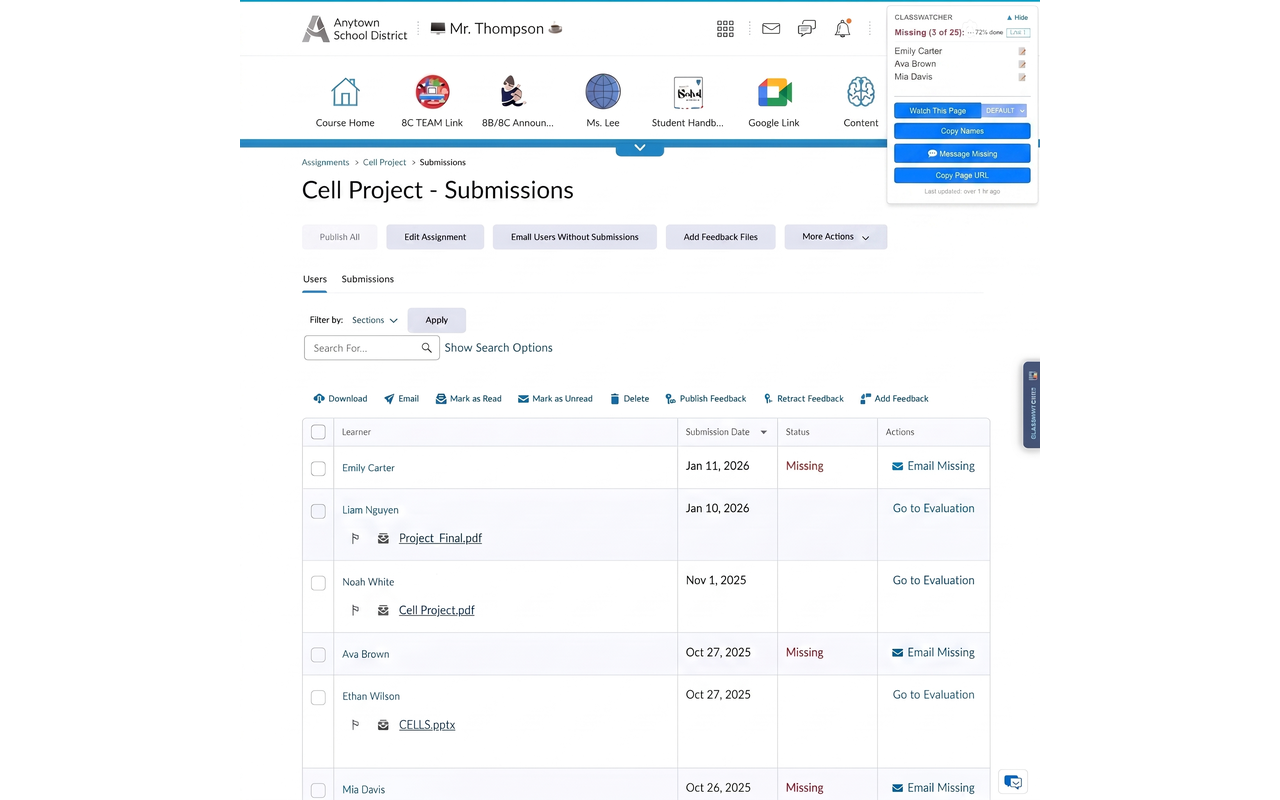
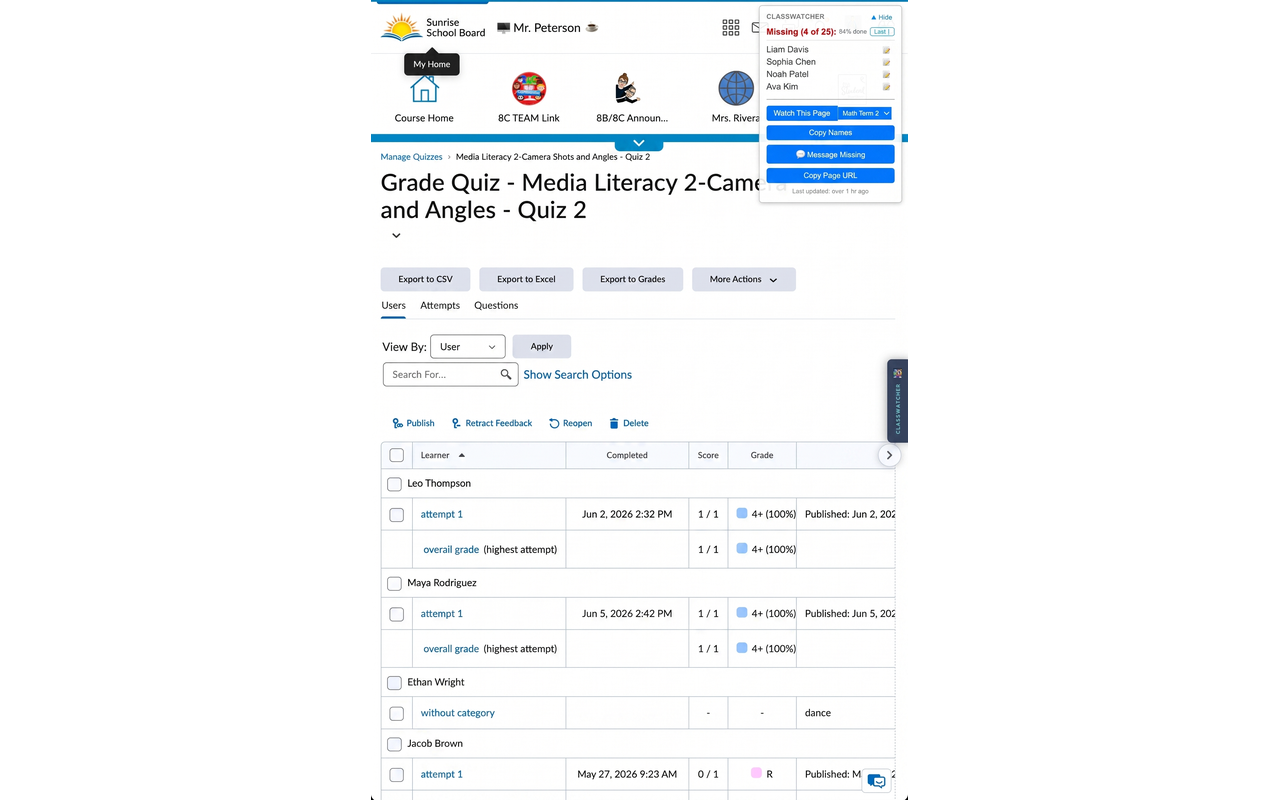
When you open a supported page in Brightspace (an assignment submission page, quiz grading page, or Google assignment), ClassWatcher scans the student names listed on the page and compares them against your imported class list. Anyone who isn't shown as submitted or with an attempt is flagged as missing.
Results appear in a floating panel on the right side of the Brightspace page — no need to switch tabs or copy anything.
What pages can ClassWatcher scan?+
ClassWatcher works on three types of pages:
- Assignments — open a specific assignment's submission page. The URL will contain
folder_submissions_users. - Quizzes — open the Grade Quiz page for a specific quiz. The URL will contain
quiz_mark_users. - Google Assignments — open the Google assignment from Brightspace Content, or go directly to
assignments.google.com.
ClassWatcher does not activate on gradebook pages, content pages, the classlist, or other Brightspace pages — only the specific submission/grade pages listed above.
What are the "Watch This Page" and "Copy Names" buttons on my Brightspace page?+
They sit at the bottom of the ClassWatcher box on supported Brightspace pages. The box arrives on its own when the page loads — there is nothing to press first.
- Watch This Page — saves this assignment or quiz to your Watch List so ClassWatcher tracks it over time and shows the missing count in your dashboard.
- Copy Names — copies the list of missing student names to your clipboard so you can paste it into an email, message, or report.
- Copy Page URL — copies the address of the page you're on.
- Message Missing — opens the Messaging Console with everyone on the list already selected.
If you're not signed in, all four show a 🔒 and say "Sign in to unlock" — the list above them still works. See "Why are Watch This Page, Copy Names and Message Missing greyed out with a 🔒?" in the section above.
Why are some students showing as missing when they've submitted?+
This is almost always a name mismatch. Your class list might have a student stored as "Jake Rivera" while the assignment page shows "Rivera, Jake" (Last, First format). ClassWatcher handles most formats automatically, but edge cases can occur with nicknames, hyphens, accented characters, or legal vs. preferred names.
To fix it: open the ClassWatcher app, go to Students, tap the student's name, and edit it to match exactly how Brightspace shows it on that page. If the issue affects multiple students, chat with Finn — there may be a pattern we can help resolve.
What is a Watch List?+
A Watch List is a collection of assignment and quiz pages you've added for ongoing tracking. ClassWatcher remembers the URL for each watched page and the last-known missing students.
Your dashboard shows every watched page with a missing-student count — giving you an at-a-glance view of outstanding work across your whole class. Tap Update Now to re-scan all pages in the active Watch List at once.
Can I have multiple Watch Lists?+
Yes. You can create as many Watch Lists as you need — useful for separating different courses or assignment types. Go to the Watch Lists screen from the menu to create, rename, or delete lists, and to move or copy watched pages between lists.
The active Watch List is shown on your home screen. Switch between lists from the Watch List selector at the top of the dashboard.
How do I run an update scan?+
Tap the Update Now button on the home screen. ClassWatcher opens each watched page in the background, scans it, and updates the missing-student count. You can watch the progress counter as it works through your list.
You can also update a single page by opening it in Brightspace — ClassWatcher scans it automatically about 5 seconds after the page loads.
Can I rename a watched page title?+
Yes. On the Watch List screen, each watched page has a pencil icon ✏️ beside it. Tap it to rename the display title inline. The underlying URL stays the same — only the name you see in the app changes. Useful when the auto-detected page title is too long or unclear.
How do I see all missing work for one student?+
In the ClassWatcher dashboard, tap any student's name. You'll see a breakdown of every assignment and quiz they haven't submitted across all your watched pages. You can also tap the › chevron beside a student to expand their missing items inline without leaving the main view.
How do I see all students missing for a specific assignment?+
Two ways: tap any assignment in the Watch List section of the dashboard to see exactly which students haven't submitted it. Or open the assignment page in Brightspace — the ClassWatcher overlay panel lists the missing students right there on the page.
How does SMS messaging work?+
ClassWatcher lets you send a text to a student's parent or guardian directly from the app. Add a phone number for each student, open the Messaging Console, compose or choose a message template, select the students you want to contact, and tap Send.
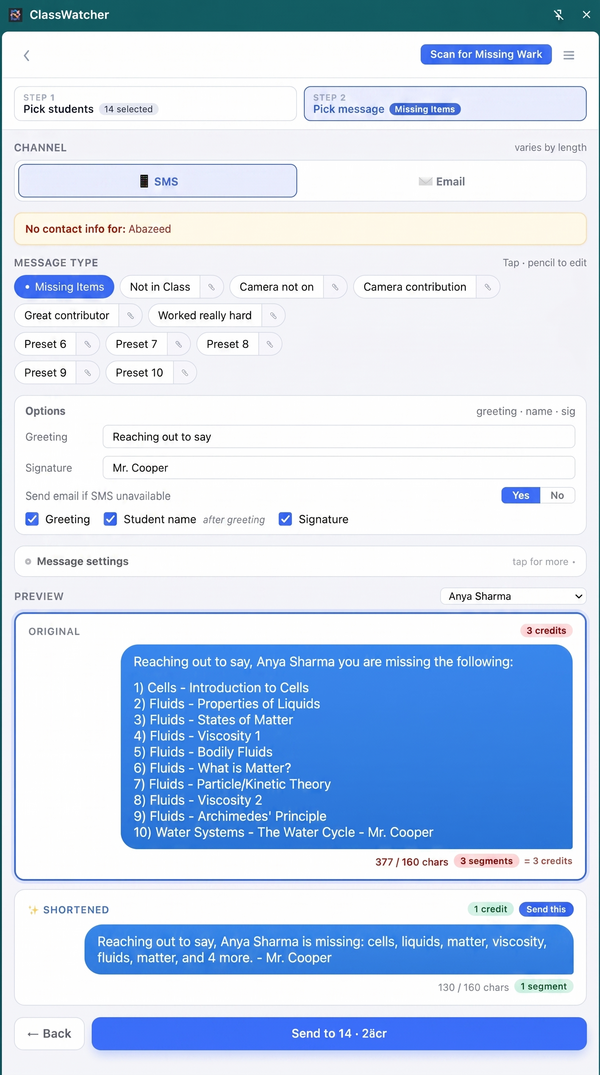
Messages are sent using your ClassWatcher SMS credits. Each text uses 1 credit (longer messages may use 2). Credits are purchased from inside the app under SMS Credits → Buy More.
How do I add a parent's phone number?+
Open the ClassWatcher app and go to Students. Tap a student's name to expand their details, and enter the parent or guardian's 10-digit mobile number (e.g., 4165551234). Save, and that number will be used for all future SMS messages to that student's family.
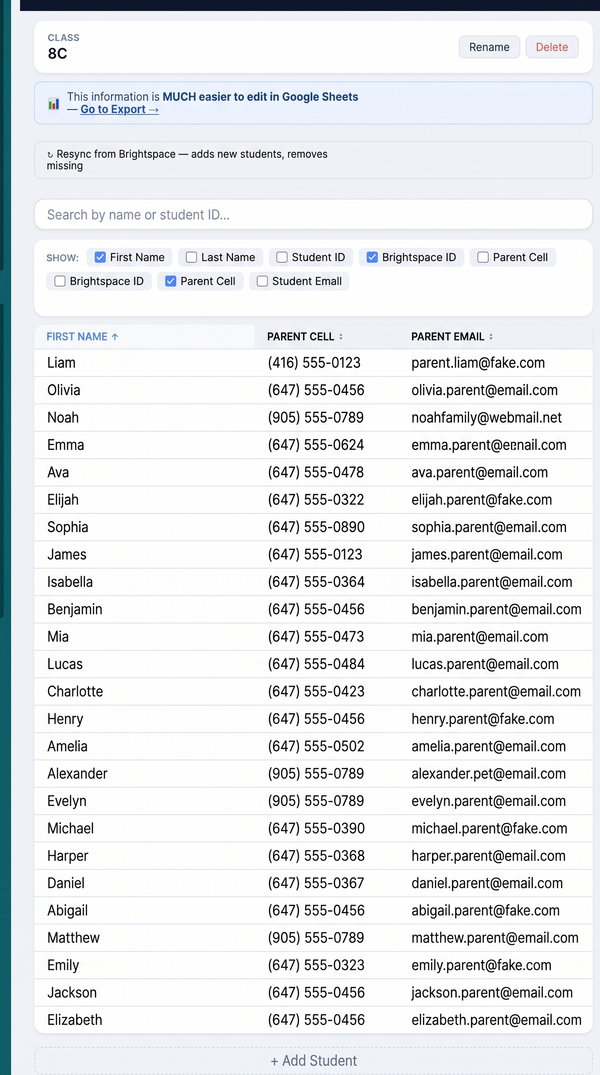
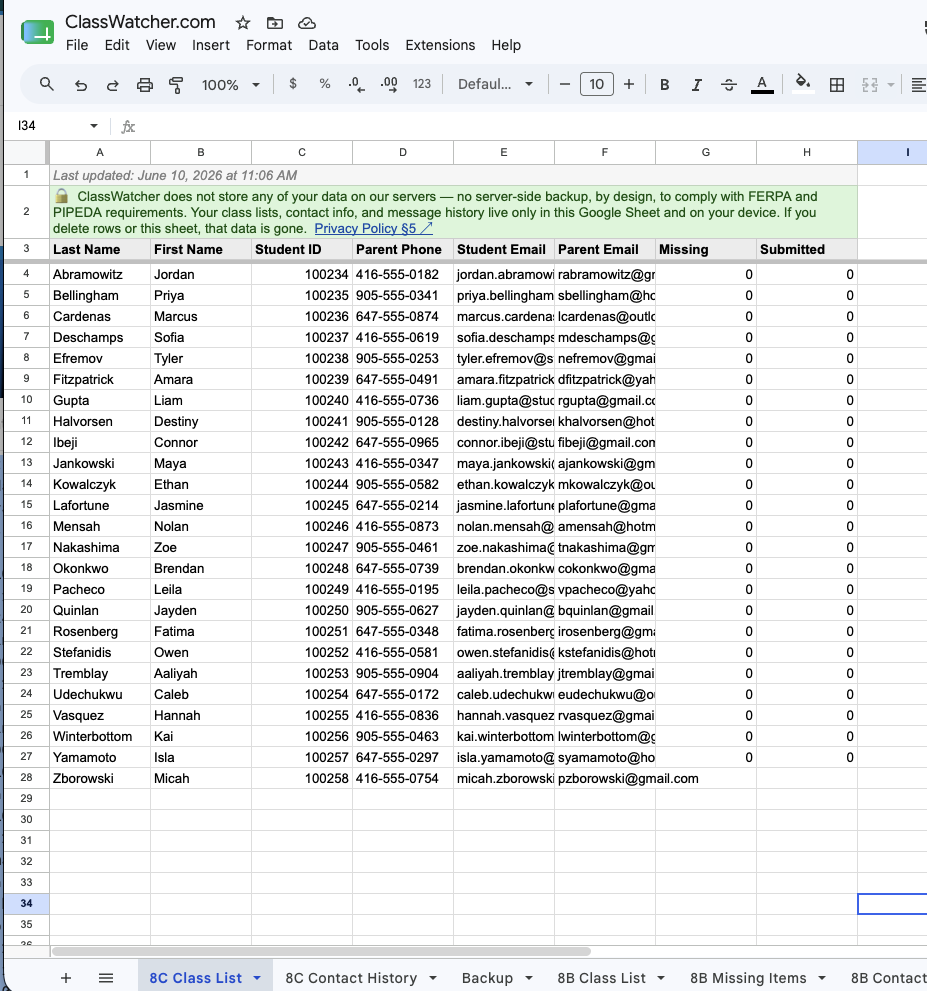
You can also edit contact info in bulk by exporting to Google Sheets — the Class List tab lets you fill in phone numbers and emails for your whole class at once, then re-import.
What is the Messaging Console?+
The Messaging Console is ClassWatcher's built-in tool for composing and sending parent messages. It has two tabs:
- Compose — write or choose a message template. Built-in presets cover common scenarios (missing assignment, quiz not submitted, etc.) and you can save your own custom templates. A live preview shows how the message will look as an SMS.
- Recipients — select which students to send to. Students with missing work are shown with their missing count. You can message all of them at once or pick individuals.
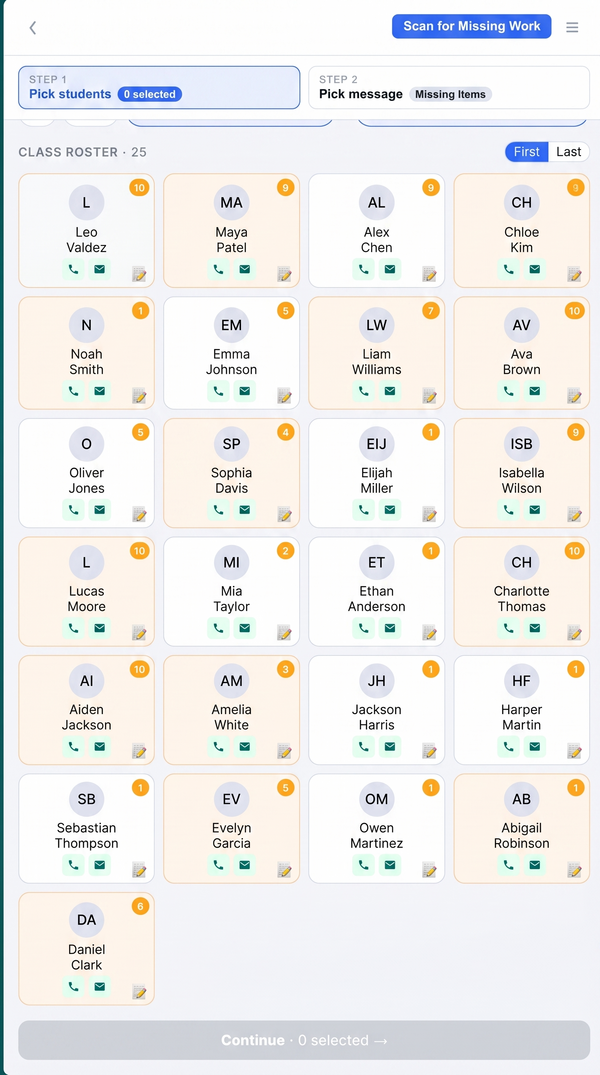
Open the Messaging Console from the menu or by tapping a student's name on the home screen.
What does the Shorten button do?+
In the Recipients tab of the Messaging Console, each student row has a Shorten button. If your message is long enough to cost 2 credits, tapping Shorten rewrites it to fit in one 160-character text.
It does this with a fixed set of rules, not with AI, and it does the same thing every time: it keeps your greeting and your sign-off, collapses a numbered list of missing work into a single line (Missing: Essay Draft, Unit 2 Quiz +3 more.), drops the class name from each title, and trims titles from the end until the message fits. Nothing is sent anywhere to do it — the rewrite happens in your own browser.
You can shorten all recipients at once. The original is preserved — tap the shortened badge to go back to the full version. Read the result before you send it.
How many SMS credits do I need, and where do I buy more?+
Each text to a parent costs 1 credit. Longer messages (over standard SMS length) may cost 2 credits — use the Shorten button to keep it to 1.
Credit bundles are available from inside the app under SMS Credits → Buy More:
- 100 credits — CA$5
- 300 credits — CA$12
- 500 credits — CA$17
A typical teacher sends 10–30 messages a month. Basic includes 50 messaging credits a month, Pro 200, and School 500 in a shared pool. Additional credit bundles are available at any time on a paid plan.
How do I export my class data to Google Sheets?+
Go to Export from the menu and click the Google Sheets button on any card. ClassWatcher will ask you to sign in with your Google account (one-time authorization). It then creates — or updates — a spreadsheet called ClassWatcher.com in your own Google Drive with three tabs:
- Class List — your full student roster
- Missing Items — formatted with red ✗ for missing and green ✓ for submitted, bold headers, colour-coded cells
- Contact History — a log of SMS messages sent
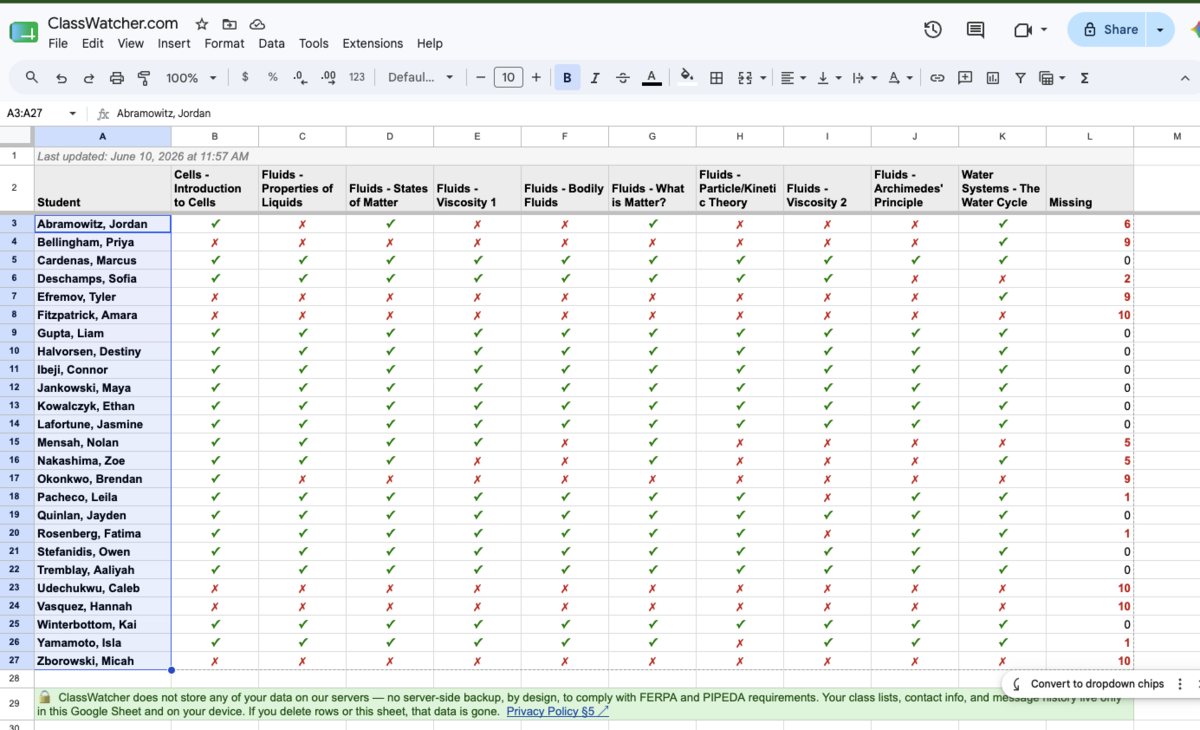
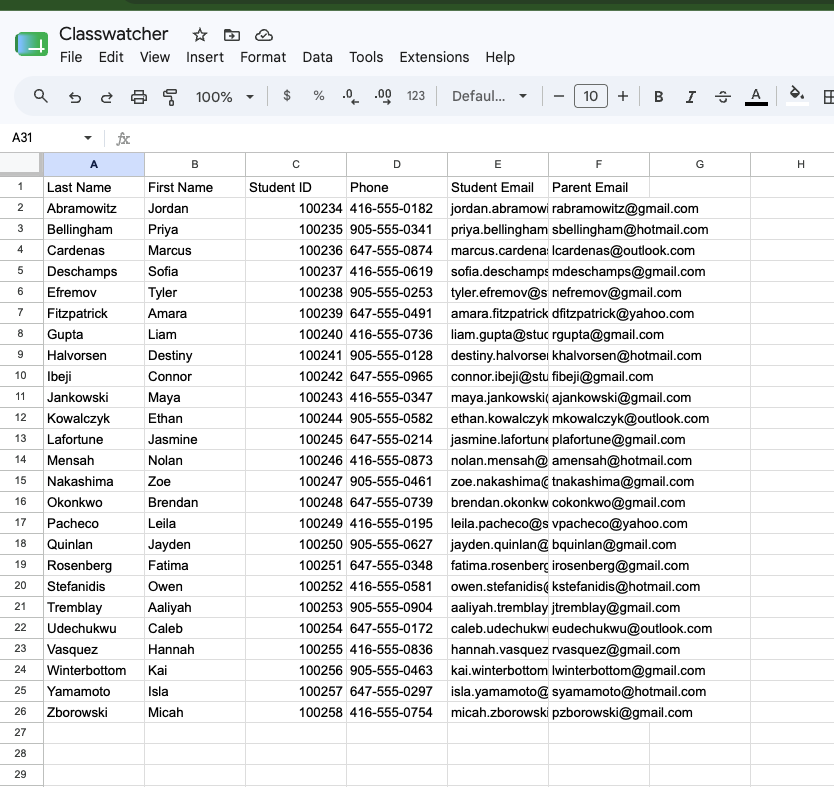
The spreadsheet lives in your Google Drive — ClassWatcher does not store or access it after creation. To find it later, search for "ClassWatcher.com" in Google Drive.
Tip: use your personal Google account. Even if you signed into ClassWatcher with your school board Google account, you can authorize Google Sheets using your personal Gmail instead. Just sign into your personal account when the Google authorization prompt appears. Your data goes into your personal Drive where board restrictions don't apply.
My school board has blocked Google Sheets — what do I do?+
Some school boards configure their Google Workspace to block third-party OAuth apps by default. If you see an error like "Access blocked" or "This app isn't verified" when trying to connect Google Sheets, your board's IT department has restricted access.
You have two options:
- Use your personal Google account — when the Google sign-in prompt appears, switch to your personal Gmail address instead of your school account. Your data will go into your personal Google Drive, which isn't restricted by board policies. This is the easiest fix and doesn't require involving IT at all.
- Ask your IT administrator to whitelist ClassWatcher — it takes about two minutes for an admin in Google Workspace. Share our IT & Security Overview page with them — it includes the exact OAuth Client ID and instructions for whitelisting ClassWatcher in the Google Workspace Admin Console.
If neither option works, the Download CSV or Download Excel export is always available with no Google account required.
How do I download a CSV?+
Go to Export from the menu and click the Download button on the card you want. This downloads a CSV file directly to your computer that you can open in Excel, Google Sheets, or any spreadsheet app.
What are Quick Links?+
Quick Links give you one-click access to the most commonly used pages in Brightspace — Content, Checklist, Assignments, Quizzes, Grades, and more. They're class-specific, so switching classes automatically updates the links to point to the right course.
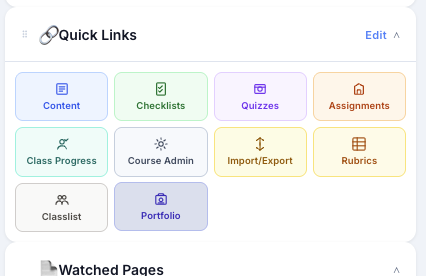
Student rows in your class list also have per-student quick links — one click takes you straight to that student's Quiz Progress, Class Progress, or Portfolio in Brightspace, without navigating through menus.
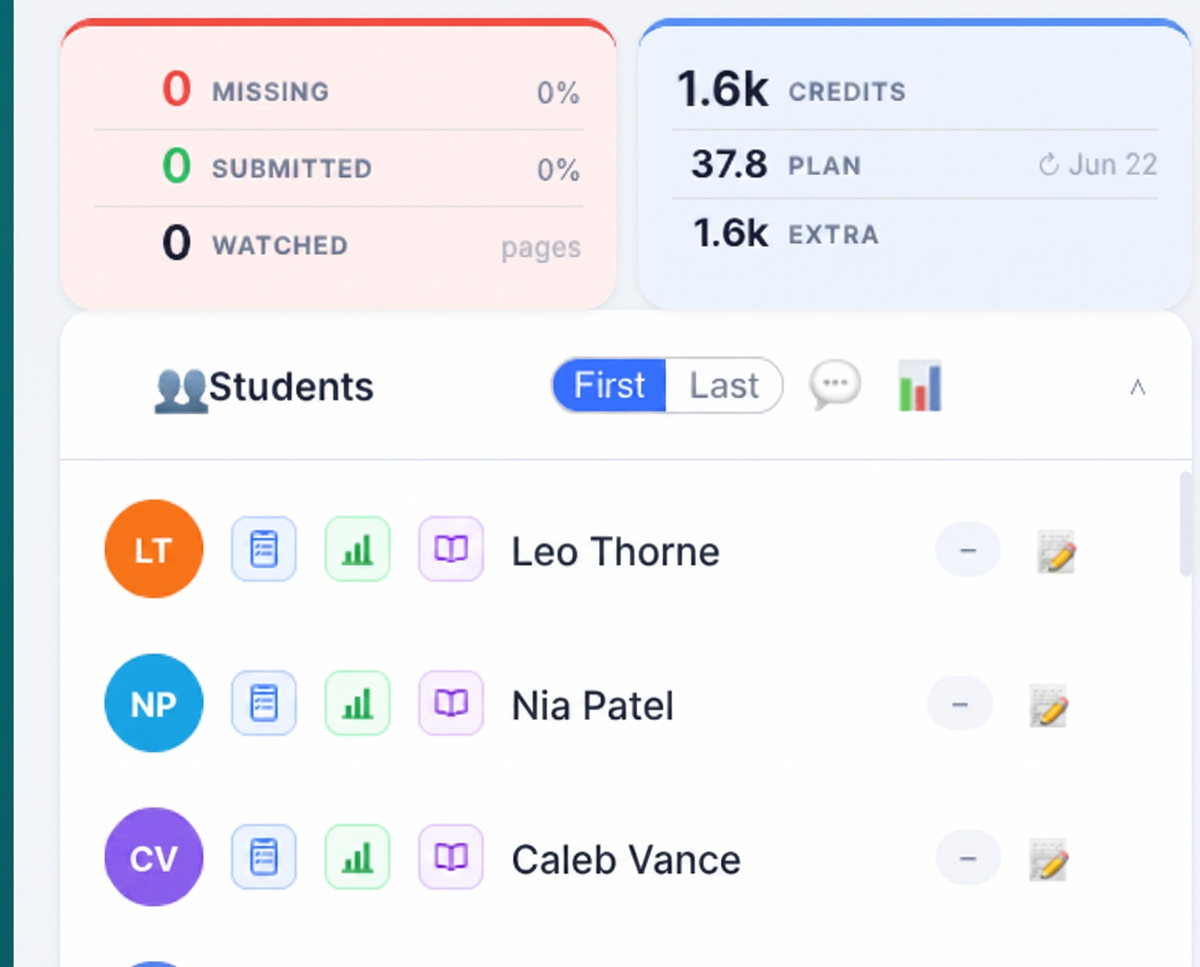
You can also add your own custom links to any URL — your school's attendance system, a Google Form, a parent communication portal, a staff intranet page, or any other site you open regularly. It doesn't have to be Brightspace. Tap Edit on the Quick Links section, then Add Custom Link. Give it a name, colour, icon, and paste in the URL.
How do I add a Brightspace page to a checklist?+
ClassWatcher can drop the Brightspace page you're currently looking at — a quiz, an assignment (dropbox), or a content topic — straight into one of your Brightspace checklists, without you having to retype the title or hunt for the link.
How to use it:
- Open the Brightspace page you want to add (the quiz, assignment, or content topic).
- In the panel's Quick Links header, click 📋 Add to Checklist.
- A dropdown lists your class's checklists — pick the one you want.
ClassWatcher then opens Brightspace's "new checklist item" screen pre-filled with the page's title and a link back to it — you just save. Your last-picked checklist becomes the default (marked with a ✓), so next time it's one click.
Don't see the button? It only appears when you have an active class selected and that class is linked to its Brightspace course (has a course/OU link). If it's missing, either no class is selected or the class hasn't been linked to Brightspace yet.
When I import a class, can I choose which roles to import?+
Yes. When you import a class from your Brightspace classlist, ClassWatcher now shows the roles it found on the page — Student, plus any others — each with a count. Tick the checkboxes for the roles you want to bring in and leave the rest out.
Your choice is remembered per school (per Brightspace domain), and the same role filter is applied automatically when you resync a class — so you only have to set it once.
Where do I set my teacher name and Brightspace URL?+
Open the menu (hamburger icon) and tap Settings. Settings is a single scrollable page with everything in one place:
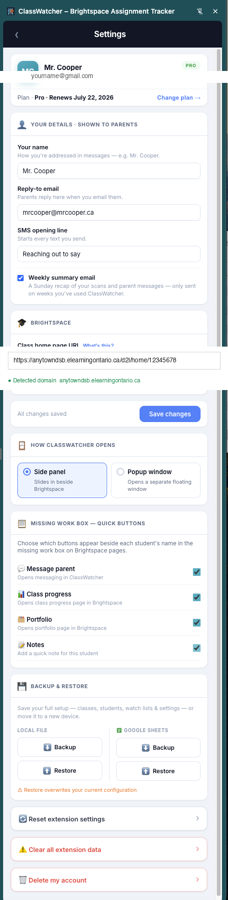
- Your name — shown in messages sent to parents
- Brightspace URL — your school's Brightspace domain, enables Quick Links. Optional — you can add it later.
- How ClassWatcher opens — choose side panel or popup window
- Backup & restore — download a backup file or sync to Google Sheets to move your data to another device
Message Settings (reply-to email, first-contact message, SMS greeting) are under the Messaging Console settings.
How do I switch ClassWatcher to college/university or corporate mode?+
Open ⚙ Settings and find the "🏫 Where do you teach?" dropdown. Pick College / university to message students directly (parent contact fields are hidden, not deleted — the column toggles on the Students screen can bring them back), or Corporate / workplace training to relabel contacts as Employee and Supervisor and message employees by default.
Switching only changes labels and messaging defaults — every phone number and email you've saved stays exactly as it is. The console and report titles, email footers, and the stock first-contact SMS text update to match; if you've customized your first-contact message, your custom text is never changed.
Can I use ClassWatcher on more than one device?+
Yes. What does not travel with you is your data: class lists, watch lists and the parent contact details you type are stored in Chrome's storage on each computer, so a fresh install starts empty.
To move them, use Backup & Restore in Settings — download a backup file on the old computer and restore it on the new one, or back up to Google Sheets and restore from there.
Your contact history is the exception: sent messages and notes are stored against your account on our servers, so they follow you to any computer you sign in on. There is no automatic sync for class lists, and no date for one.
How does the referral program work?+
Open the 🎁 Refer a Friend panel in the web app footer to get your personal share link. A colleague can sign up through that link, or type your code into the optional "Invite code" field when registering with email.
- +50 bonus messaging credits for both of you — awarded when your colleague imports a class and runs their first scan (not at signup).
- 1 free month for you — when your colleague starts a paid subscription. It's applied automatically to your billing if you're an active subscriber, or banked and applied when you next have a paid plan.
Caps: 12 free months and 20 credit-earning activations per calendar year, and a free month is worth up to the Pro monthly price ($19 CAD). Referral bonus credits never expire. Each account can only be referred once, and accounts sharing a device or browser don't earn rewards.
How many teachers fit on a School plan?+
The School plan includes 1 admin plus 10 teacher seats, sharing a pool of 500 messaging credits per month. The admin invites teachers with a shareable link from Settings → School Admin, and the admin panel shows how many seats are used out of the limit.
The seat limit is per school and can be raised — if you need more than 10 teachers, contact support at [email protected] to add seats. A teacher who already pays for their own plan keeps it; joining a school only ever raises their limits, it never bills them.
Some buttons are missing — half the app isn't showing up+
This is almost always caused by a missing Brightspace URL in Settings. Quick Links, class navigation shortcuts, and several other buttons only activate once ClassWatcher knows your school's Brightspace domain.
Fix (takes 30 seconds):
- Open ClassWatcher and tap ⚙ Settings at the bottom
- Find the Brightspace URL field
- Enter your school's Brightspace address — e.g.
https://yourboard.brightspace.comorhttps://pdsb.elearningontario.ca - Tap Save changes
You'll see a green ● Detected domain confirmation once it's entered correctly. If you're unsure of your board's URL, just copy it from your browser's address bar while you're on any Brightspace page.
ClassWatcher isn't detecting my page+
Check these in order:
- Is it the right page type? ClassWatcher only activates on assignment submission pages (
folder_submissions_usersin the URL), quiz grade pages (quiz_mark_users), or Google assignment pages. It does not activate on the gradebook, classlist, or content pages. - Is the page fully loaded? ClassWatcher scans about 5 seconds after page load. Give it a moment before assuming it's not working.
- Do you have a class imported? ClassWatcher needs student names to compare against. Import your class from the Classlist page first.
- Is your school domain enabled? If your school uses a custom Brightspace URL, enter it in Settings → Brightspace URL, then click Enable ClassWatcher here → when the banner appears.
- Is the extension enabled? Check
chrome://extensionsand confirm ClassWatcher is turned on.
The overlay panel isn't showing up on the Brightspace page+
ClassWatcher appears as a pull-tab on the right side of your Brightspace page. Click it to open the panel.
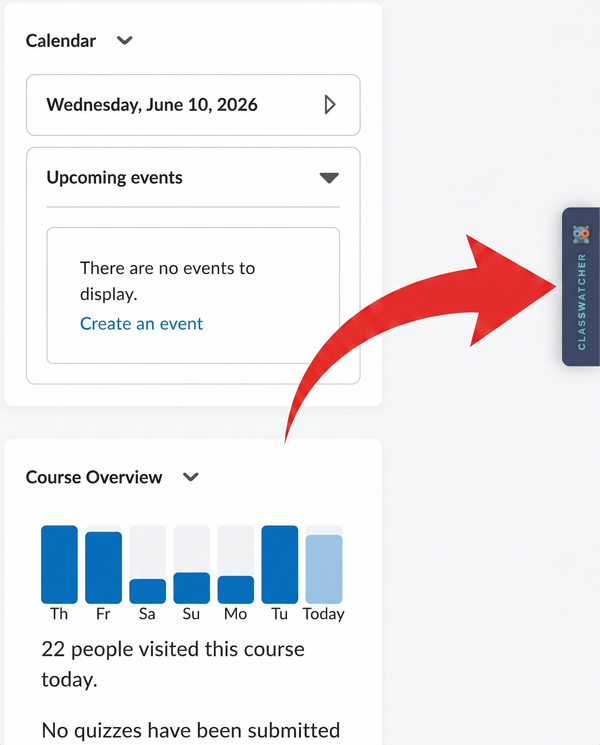
If you don't see the pull-tab at all:
- Reload the Brightspace page and wait a few seconds.
- Open the ClassWatcher app and confirm the Extension Online indicator is green. If it shows Offline, close and reopen the app from the Chrome toolbar.
- If the indicator is green but the panel still won't show, go to
chrome://extensions, find ClassWatcher, and click the reload ↺ icon. Then reload the Brightspace page.
The panel is showing the wrong class — or no class at all+
In Auto mode, the panel now follows you automatically as you move between your classes in Brightspace, so the active class should match the page you're on.
If it ever shows the wrong class — or none — click the ↻ refresh button beside the class selector at the top of the panel. It re-detects which class the current Brightspace page belongs to and updates the active class to match.
The auto-hide panel didn't come back when I returned to Brightspace+
If you use the auto-hide option (the panel hides itself on non-Brightspace pages), it now reliably reappears when you return to a Brightspace tab. If you'd previously seen it stay hidden, updating to the latest extension version resolves it.
The app says "Extension Offline"+
This means the ClassWatcher web app has lost its connection to the Chrome extension. To reconnect:
- Close the ClassWatcher app window.
- Click the ClassWatcher icon in your Chrome toolbar to reopen it — this re-establishes the connection.
- If it keeps happening, go to
chrome://extensions, find ClassWatcher, and click the reload ↺ icon.
My class data disappeared after switching devices or browsers+
ClassWatcher stores your data in Chrome's local storage, so it doesn't automatically follow you to a new device or browser profile. To move your data:
- On your old device, go to Settings → Backup & Restore → Backup (Local file) and download the backup file.
- On your new device, go to Settings → Backup & Restore → Restore and load that file.
You can also use Backup to Google Sheets — back up on the old device, then restore from Google Sheets on the new one, no file transfer needed.
If you didn't back up before switching, chat with Finn — we may be able to help recover what's possible.
Is my student data stored securely?+
Your class lists and the parent contact details you enter stay in your browser's Chrome storage — our servers never receive a roster, a grade, or a piece of student work. When you send a message, that message is logged on our servers with the student's name, the recipient and the message text, kept for 365 days so your contact history follows you between devices. All data is transmitted over HTTPS.
ClassWatcher reads submission status (who's missing) on assignment/quiz pages, and — if you use the Marks or Parent Report features — quiz scores and assignment grades via the Brightspace API. It does not scrape assignment content, feedback, or any other page data beyond that. We store only what you explicitly enter, plus the grades those features pull. See our Privacy Policy for full details.
I've tried everything and ClassWatcher still won't work at my school+
ClassWatcher works out of the box for most schools, but Brightspace is configured differently at every board — custom domains, IT restrictions, and occasional D2L layout changes can all get in the way.
If you've worked through the steps above and are still stuck, email David directly at [email protected]. Include your school board name, your Brightspace URL, and a quick description of what's happening.
ClassWatcher is built by one teacher-developer. David personally handles these edge cases and will work through your school's specific setup with you — he's helped teachers at boards with unusual configurations get up and running.