If you've come across the phrase "watch list" while searching for Brightspace tips, here's the honest answer: it isn't a native Brightspace feature. There's no menu called Watch Lists, no button that saves an assignment for regular monitoring, no built-in way to flag a page you want to revisit every week. The term comes from teachers improvising their own system on top of Brightspace.
This post explains what teachers mean when they talk about a watch list, why the workarounds are painful, and how ClassWatcher builds a proper watch list right inside Brightspace.
What teachers mean by "watch list"
In most classrooms, there's a small set of assignments and quizzes that need regular attention: the big essay, the unit quiz, the portfolio submission. A watch list is simply a saved collection of those pages so you can check them quickly without navigating through course menus every single time.
Because Brightspace doesn't offer this natively, teachers end up doing things like:
- Browser bookmarks folder: works, but you're still opening each page separately and running the "Users without submissions" filter manually each time.
- Sticky notes or a paper list: written notes of the 8 to 10 URLs or assignment names to check each week. Easy to lose, hard to update.
- A spreadsheet: some teachers keep a Google Sheet with links to each assignment page. More organized, but still requires opening every page individually.
- Memory: navigating through the course menus from scratch every time. Most common, most time-consuming.
The real cost adds up fast. If you have 10 assignments you check twice a week, and each requires 5 to 6 clicks to find the missing-submissions view, that's 100+ clicks per week just to get to the information, before you've done anything with it.
What ClassWatcher's watch list does
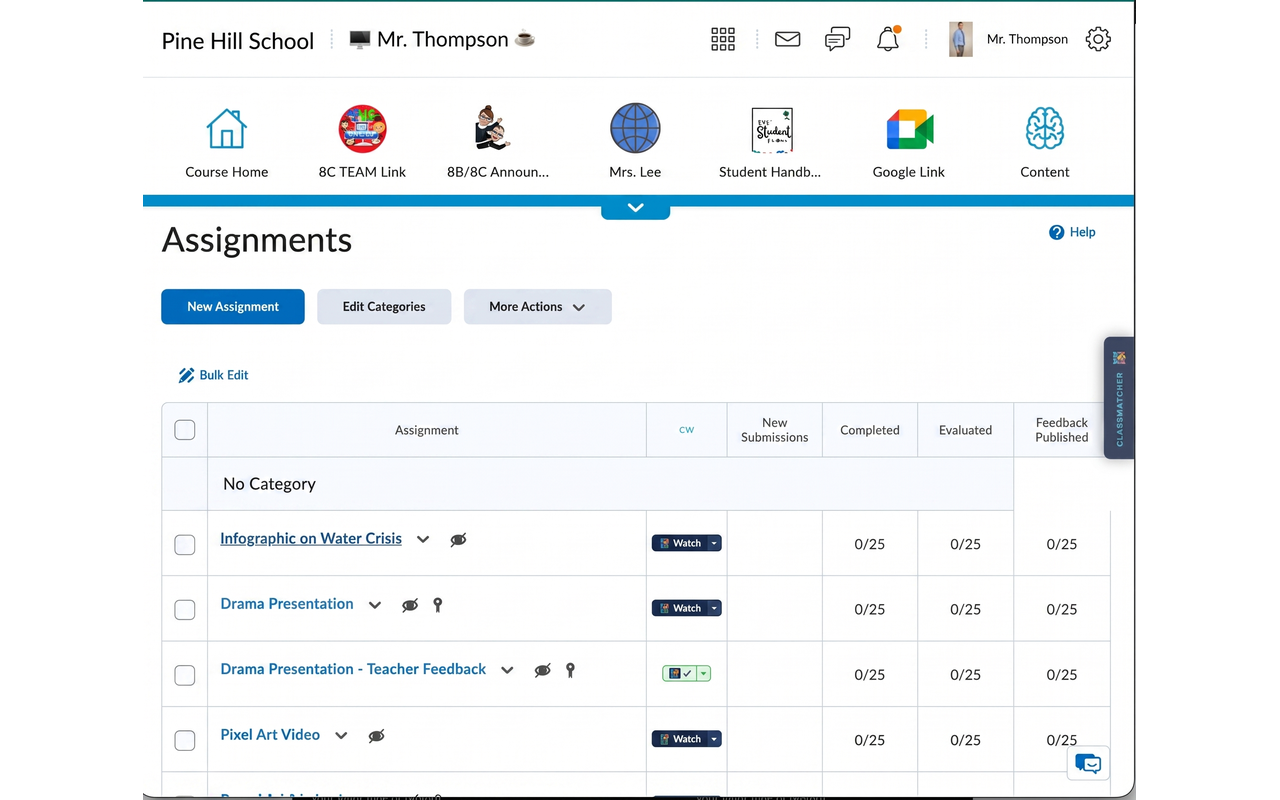
ClassWatcher is a Chrome extension that adds a proper watch list to Brightspace (the on-page missing list is free; watch lists are on the paid plans). When you're on any assignment or quiz submissions page, a ClassWatcher panel appears on the right side of your screen. It scans the page automatically and shows you every student who hasn't submitted, and it lets you save that page to your personal watch list with one click.
Once a page is saved to your watch list:
- It appears in your ClassWatcher panel by name, no matter which Brightspace page you're currently on.
- One click takes you directly to that assignment's submissions view, with no course menus and no extra navigation.
- ClassWatcher scans the page immediately when you land on it, so the missing-student list is already waiting for you.
- You can have multiple watch lists (one per class, for example) and switch between them in one click.
How to add a page to your watch list
Once ClassWatcher is installed, saving a page takes about three seconds:
New watch lists auto-default. When you create a new watch list for a class, ClassWatcher automatically makes it your active list so saved pages go to the right place straight away.
A few things worth knowing
ClassWatcher's watch list is per-teacher and stored locally in your browser. It's tied to your Chrome profile, not shared with other teachers. You can watch the same assignment as a colleague without them seeing your list or vice versa.
If you teach multiple classes, you can create one watch list per class. Switching between them is a single click in the panel, and ClassWatcher can even detect which class you've navigated to in Brightspace and switch automatically.
To remove a page from your watch list, just click the Watch button again on the same page. It toggles off and removes the entry from all watch lists.
For elementary teachers who contact parents, high school teachers who reach out to both students and parents, or college instructors messaging students directly, once you have the missing list in front of you, ClassWatcher lets you send SMS or email to the right people without leaving Brightspace.