Build your Brightspace quizzes, assignments and pages in one place
Studio is a course builder for Brightspace teachers. Write quizzes, assignments and reading pages, see the whole unit as cards, then export one ZIP and import it into your course. If you want a head start, optional AI drafts questions from your own PDFs, and you review every one before it goes anywhere.
Free with a ClassWatcher account · Works in any browser on a computer · Exports for D2L Brightspace · Imports Brightspace and Common Cartridge courses
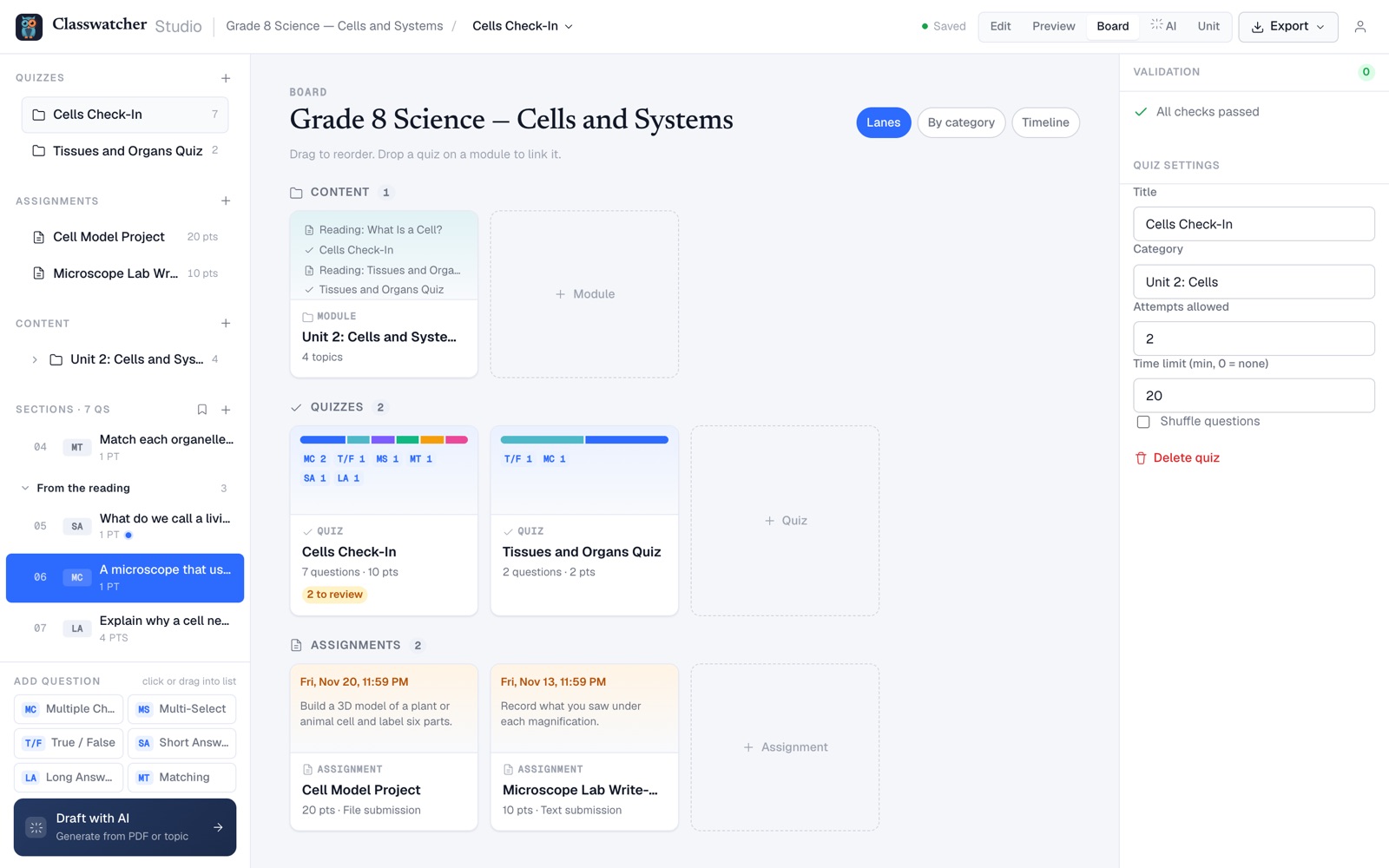
The board shows a whole unit at once: content modules, quizzes and assignments. Drag to reorder, drop a quiz on a module to link it. (Sample course.)
The short version
- Build: quizzes with six question types, assignments with due dates and points, and reading pages grouped into modules.
- Export: download the whole course, or one quiz, as a Brightspace ZIP and import it into your course.
- Import: start from a Brightspace course export, or a Common Cartridge file from Canvas, Moodle and others.
- Optional AI: draft questions from a PDF or your notes. Every AI question is flagged until you review it.
Write quizzes the way Brightspace will show them
Studio has the question types teachers actually use: multiple choice, multi-select, true or false, short answer, long answer and matching. Group questions into sections, set points and feedback, and set attempts and a time limit for the quiz. Preview shows the quiz the way a student sees it, so you can try answering before you export.
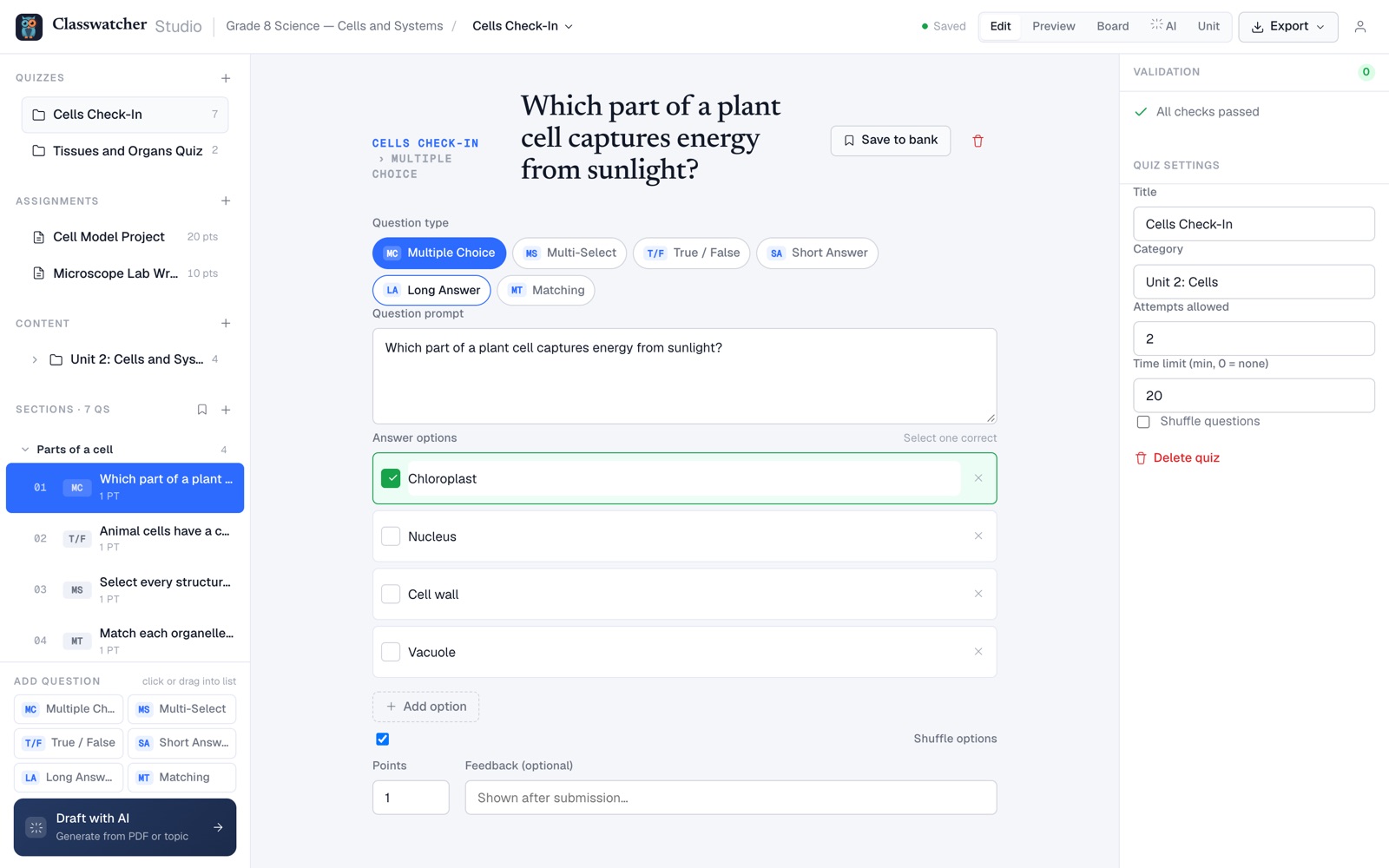
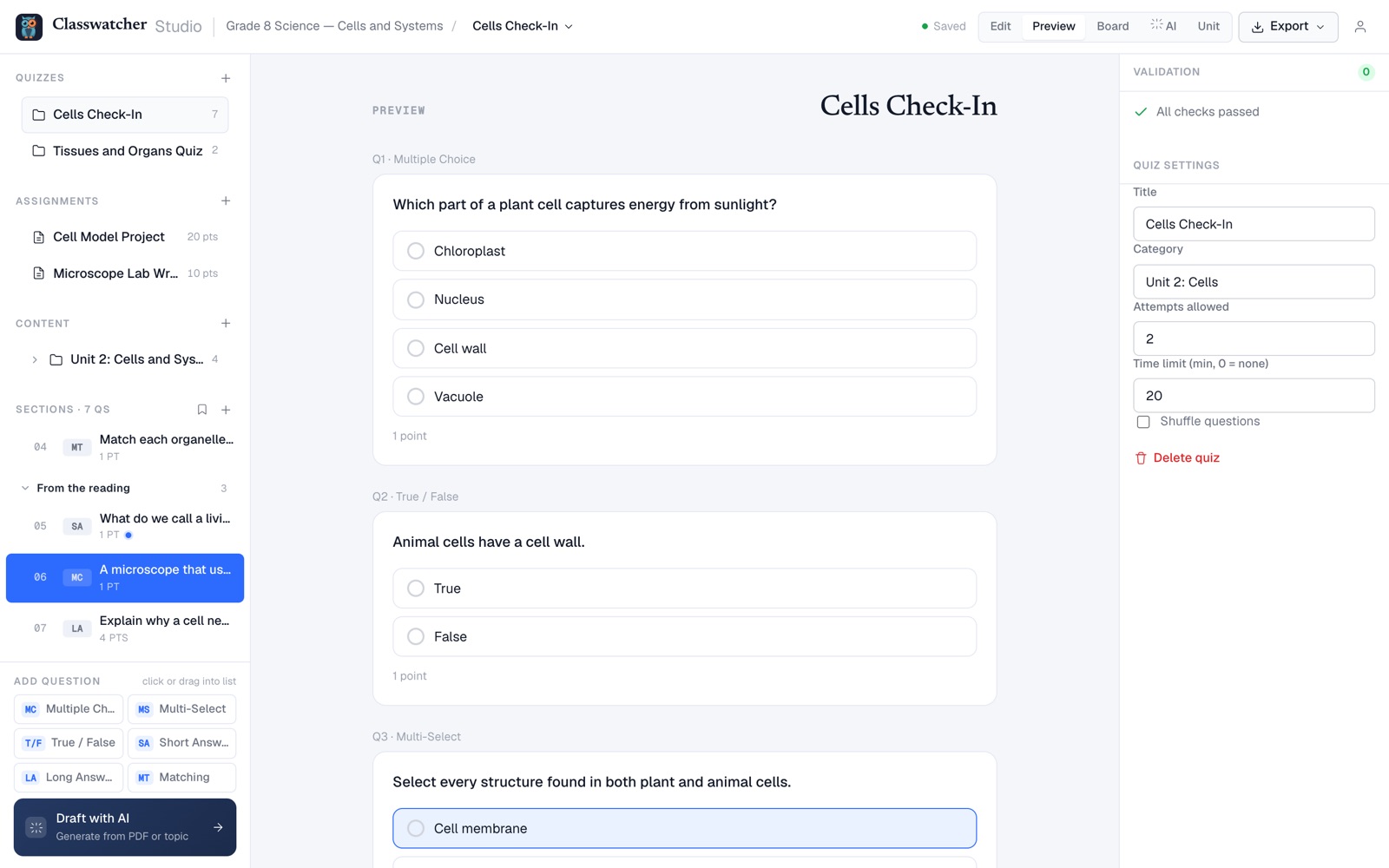
Left: the question editor. Right: Preview, the student's view.
Questions you want to reuse go in the question bank, and a question copied into another quiz stays linked to where it came from.
One ZIP into Brightspace
When the unit is ready, choose Export → Whole course or This quiz only. Studio builds a Brightspace course package with your quizzes, assignments and content pages. In Brightspace, open your course's import tool (Course Admin → Import / Export / Copy Components) and import the ZIP.
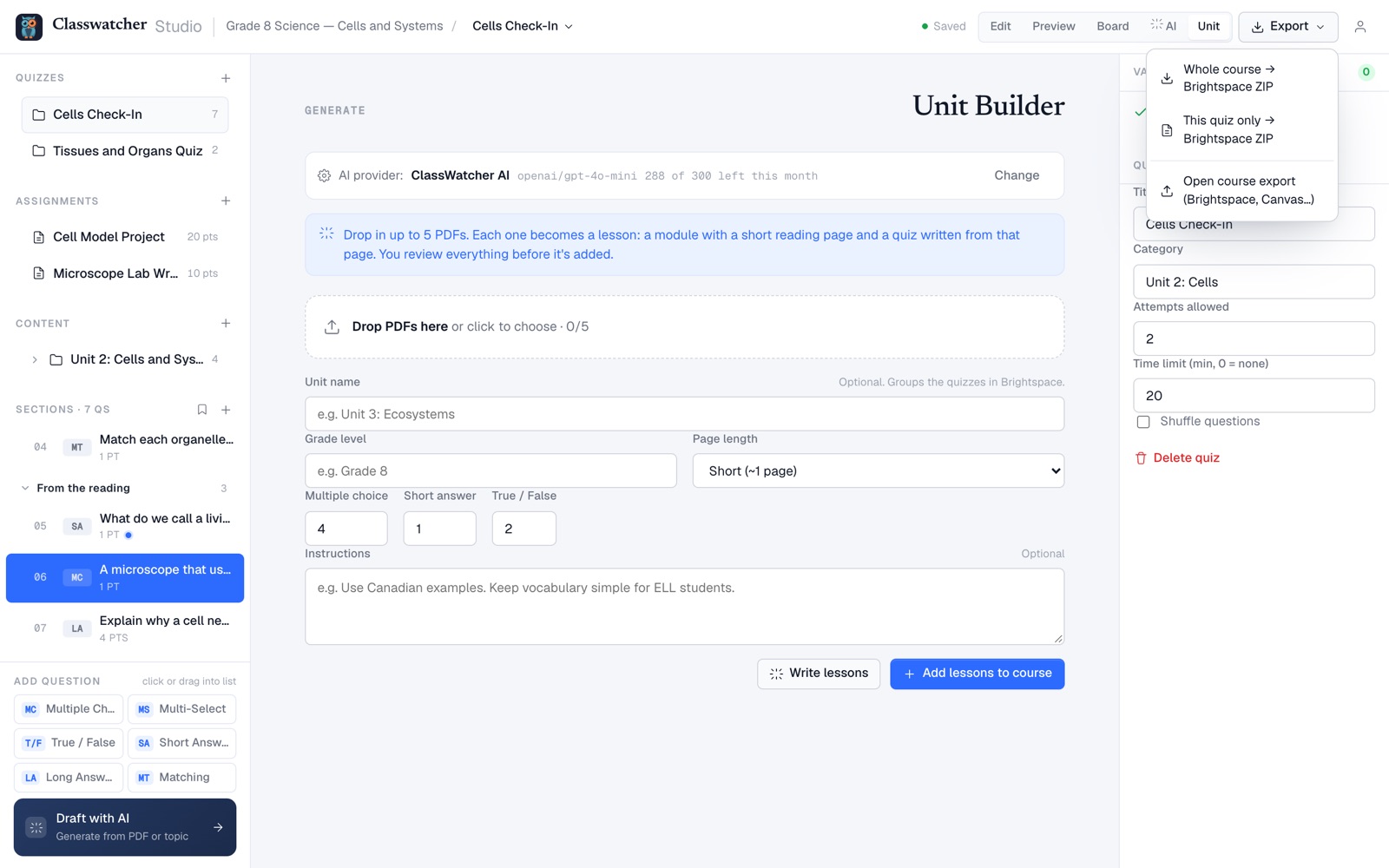
Export the whole course or a single quiz. The Unit Builder is behind it.
It works the other way too. Open course export reads a Brightspace course export or a Common Cartridge (.imscc) file from Canvas, Moodle and other systems, so you can rework an existing course instead of starting over.
AI that drafts, not decides
AI is optional, and nothing it writes goes into a quiz unreviewed. Paste notes or drop in a PDF, choose how many multiple-choice, short-answer and true-or-false questions you want, and Studio drafts them. Each one carries an AI · needs review tag until you read it and press Mark reviewed.
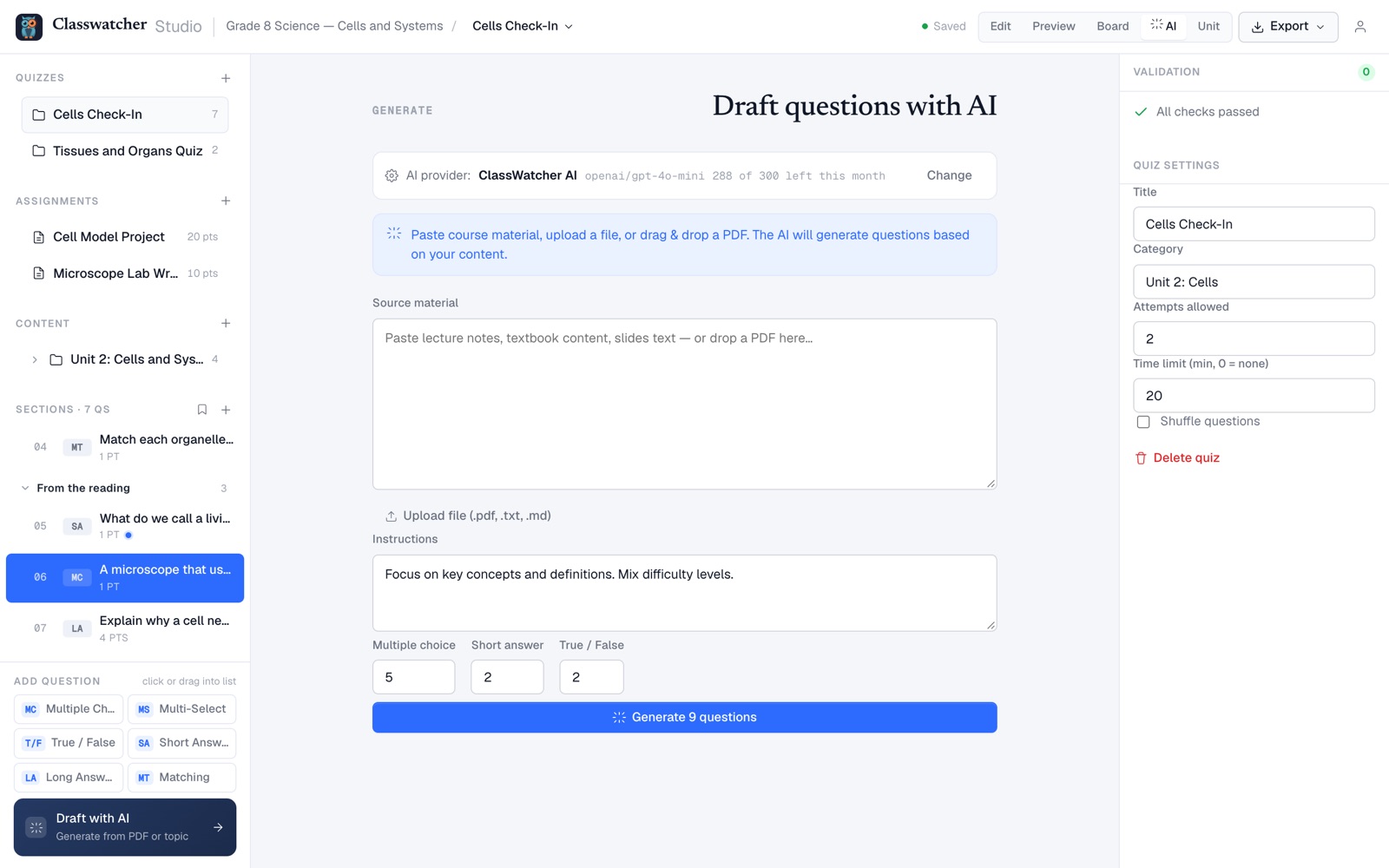
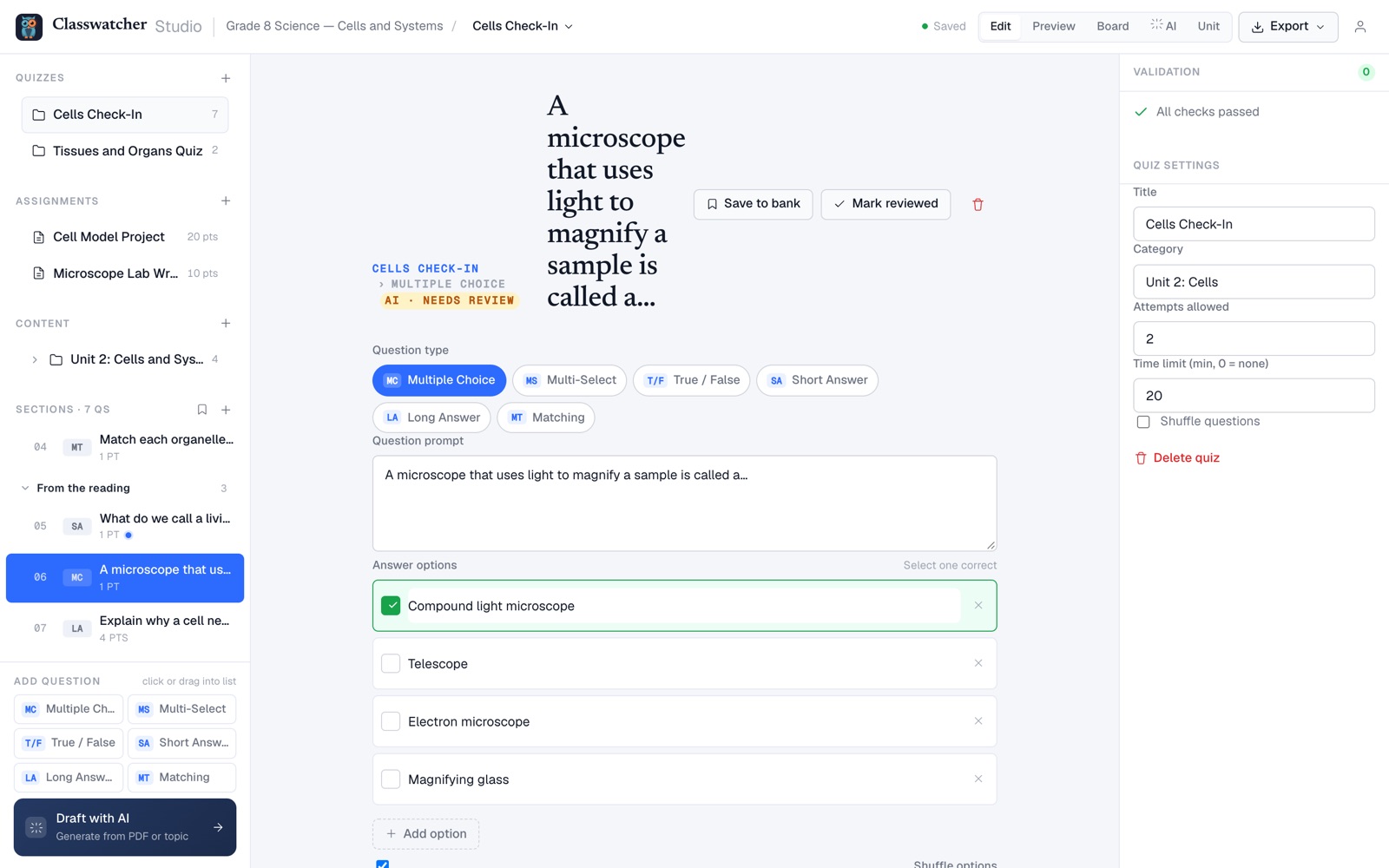
Left: drafting from your own material. Right: an AI question waiting for your review.
The Unit Builder goes one step further: drop in up to five PDFs and each becomes a lesson, a short reading page plus a quiz written from that page. You review everything before it's added to the course.
You choose where the AI runs
- ClassWatcher AI: included with paid ClassWatcher plans, up to a monthly limit. No key needed.
- Your own key: OpenAI, Anthropic, OpenRouter or any OpenAI-compatible service, billed to your own account. Works on a free account.
- Ollama on your computer: free and private. Your browser talks straight to Ollama on your own machine, and nothing is sent to our server.
What leaves your computer. Studio reads PDFs in your browser. Your projects are saved to your ClassWatcher account. When you ask the AI for questions, the text you gave it goes to the AI service you picked, and with Ollama on your computer it goes nowhere else. Course material only, please: there's no reason to put student names or marks into Studio.
What it costs
| Free account | Basic, Pro and School | |
|---|---|---|
| Build, preview, board, question bank | Included | Included |
| Import and export Brightspace ZIPs | Included | Included |
| AI with your own key or Ollama | Included | Included |
| ClassWatcher AI | Not included | Included, up to a monthly limit |
Plans and prices are on the ClassWatcher home page. Studio uses the same account as the rest of ClassWatcher, so there's no second sign-in.
How it fits with the extension
The ClassWatcher extension is the other half: it shows who hasn't handed work in, right on your Brightspace pages. If you have it installed, there's a small Studio tab under the ClassWatcher pull-tab on every Brightspace page that opens Studio in a new tab. Studio works without the extension too.
Questions
Do I need an account?
Yes, a free ClassWatcher account. Studio saves your projects to it. (The extension's missing-work list is the part that works with no account at all.)
Does it work with my school's Brightspace?
Studio exports a standard Brightspace course package, which you import through your course's own import tool. If your role lets you import components into a course, it will work. Some schools limit who can import; ask your Brightspace admin if the option is missing.
Can the AI see my students?
No. Studio never connects to your Brightspace class or its students. The AI only sees the material you paste or upload, and only when you ask it to draft questions.
Can I bring a quiz from Canvas or Moodle?
Yes. Export a Common Cartridge (.imscc) file from the other system and open it in Studio, then export a Brightspace ZIP.
Build your next unit in Studio
Sign in with your ClassWatcher account, start a project or open a course export, and export to Brightspace when it's ready.
Open Studio, freeFree with a ClassWatcher account · ClassWatcher AI included with paid plans
Related reading: how to see who hasn't submitted in Brightspace · who hasn't started a Brightspace quiz