Interview night is ten minutes per family, and eight when the schedule slips. In that time a parent wants to know three things, and you want to have said one specific, useful thing they can act on at home.
The prep is the hard part. Not because the information doesn't exist — it's all in Brightspace — but because it's stored the wrong way round. Brightspace organises everything by column: this assignment, and how all thirty students did on it. Interviews happen by row: this student, and how they did on everything.
So the night before, you end up transposing a spreadsheet in your head, thirty times.
This is a guide to doing that faster. The first half is about where the data actually lives and how to prep properly regardless of what tools you use. The second half shows how we built the row-shaped view, because that's the piece Brightspace doesn't hand you.
The three questions every parent asks
Across enough interviews the questions converge. Almost every one is a version of:
- "How is she doing overall?" — they want a level, and a direction. Not a number to four decimal places.
- "Is there anything missing?" — the single most useful thing you can answer precisely, and the one most likely to surprise them.
- "What should we do at home?" — they want one instruction, not a list of five.
Question two is where the conversation turns. A parent who hears "she's doing fine" and then sees four zeros on the report card in November has lost trust in you, and fairly. A parent who hears "there are three assignments she hasn't handed in, here they are" has something to work with that evening.
The prep goal, stated plainly: for each student, be able to answer all three questions in under thirty seconds, without opening a second tab in front of the parent.
Where this information actually lives in Brightspace
Three separate places, which is the root of the problem.
Overall standing → Grades
Enter Grades gives you the class-wide grid: every student down the side, every grade item across the top. It's the right tool for entering marks and the wrong shape for interviews — to read one student you're tracking a single row across a horizontally scrolling table, and the columns you care about most are usually the ones furthest right.
Brightspace does have a per-student view. From the gradebook you can open an individual student's grades, and Class Progress (under Course Admin, depending on how your board has configured it) shows logins, content viewed and grade summaries for one learner at a time. It's genuinely useful and underused. What it won't do is lay out submitted-versus-not across every assignment and quiz in a form you can scan in ten seconds.
Missing work → nowhere central
This is the real gap. There's no single Brightspace screen that says "here is everything this student has not handed in." You check it folder by folder: open an assignment's submission list, see who's absent from it, note the name, move to the next one. With twelve assignments and four quizzes that's sixteen screens per class, and you're reading them column-wise again.
We've written about the manual method in detail in how to see who hasn't submitted in Brightspace — it works, it's just slow enough that most of us do it once a term instead of once a week.
Contact history → not in Brightspace at all
Brightspace has no teacher-side log of who you've phoned, emailed or texted about a student. Most teachers keep this in a notebook, a personal spreadsheet, or their sent-mail folder, and most of us have walked into an interview unsure whether we'd already reached out in October or only meant to.
That uncertainty costs you the strongest opening line in the whole meeting: "I emailed you about this on the 14th" lands very differently from "I think I may have been in touch?"
A prep routine that works
Whatever tools you use, this sequence holds up:
- Do it in one sitting, about a week out. Prepping student-by-student the night before means the last eight get four minutes each. A week out you still have time to send a heads-up to the families where the news is heavy.
- Work one student at a time, not one screen at a time. Resist the urge to open the gradebook and go column by column. You'll have to re-sort it into students anyway.
- Write one page per student, and keep it short. A level, a direction, the missing items by name, one strength, one ask. If it doesn't fit on a half page you'll never find it mid-conversation.
- Decide the single ask before the meeting starts. "Check the Brightspace calendar together on Sunday nights" is an ask. "He needs to be more organised" isn't.
- Flag the three hardest conversations in advance. Contact those families before interview night, not during it. Nobody should learn about four missing assignments while sitting in a gym in front of other parents.
One thing worth checking before you print anything: a due date that has passed in Brightspace isn't automatically a missing assignment. Extensions, accommodations, paper submissions and work handed in during a conversation all show as un-submitted online. Read the list as a prompt to check, not as a verdict.
Getting it onto one screen
This is the part we built, because it's the part that was costing the most time. ClassWatcher is a free Chrome extension for D2L Brightspace teachers, and interview prep is the job it's best at — it turns the column-shaped gradebook into a row-shaped view, one student at a time.
1. Pull the full student report
From your class list, one click gives you everything for a single student on one screen: every assignment, every quiz, every gradebook item, with what was submitted, what wasn't, and what it scored. Green, amber and red bands across the top tell you the shape of the term before you've read a single row.
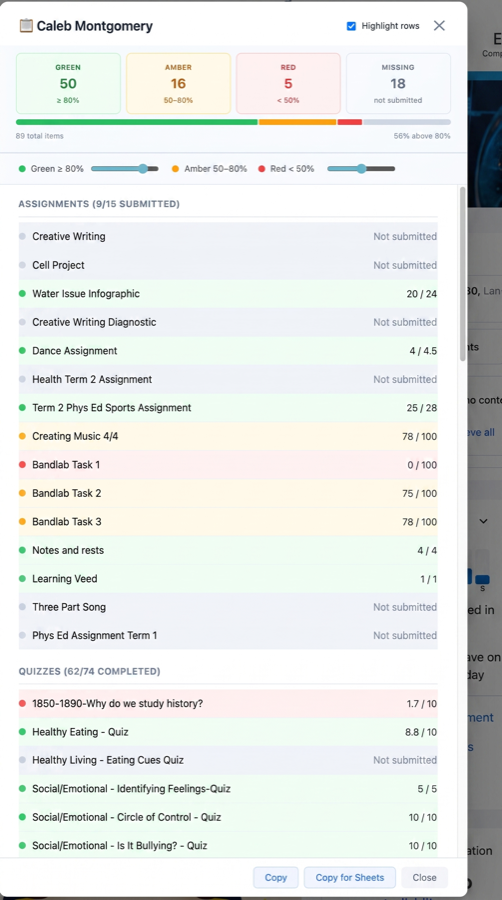
One student, one screen: 89 items, 18 not submitted, with each assignment and quiz listed by name and score.
This is the artefact to prep from. It answers question one (overall standing, with a direction) and question two (what's missing, by name) in a single view, and it takes seconds rather than sixteen screens.
There's a Copy button at the bottom, so the same list can go straight into whatever you keep your interview notes in.
2. Check what you've already said to this family
Before you plan what to say, it's worth knowing what's already been said. The Last Contacted screen sorts your class by how long it's been since anyone reached out, so the families you haven't spoken to all term are at the top rather than buried alphabetically.
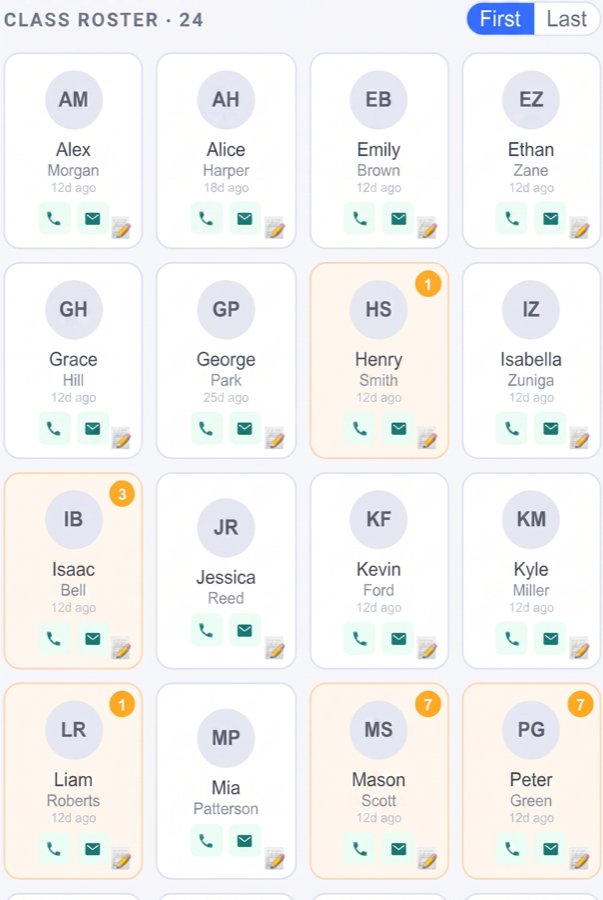
Sorted by days since contact, so nobody is a surprise on interview night.
In the week before interviews this doubles as a to-do list. The students near the top with missing work are exactly the families who should hear from you before the meeting, not at it.
3. Take the marks with you
Some teachers prep on screen; plenty would rather have paper in front of them in a noisy gym. Marks export to Google Sheets or CSV, so you can print, sort, or annotate however you work.
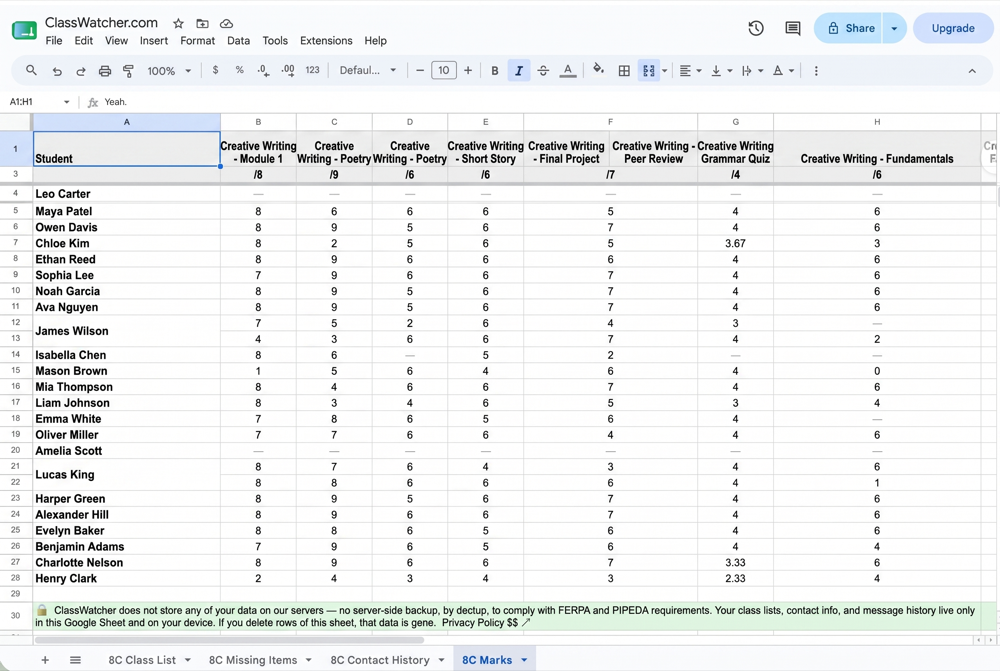
Marks exported to a Sheets tab — print it, sort it, or bring it on a tablet.
The same export screen also covers your class list and the current missing-work list. If you already keep interview notes in Sheets, the export walkthrough covers the setup.
4. Log the conversation afterwards
This is the step everyone skips and everyone later wishes they hadn't. Whatever you agreed at the interview — she'll submit the two labs by Friday, we'll check the calendar on Sundays — is worth thirty seconds of writing down, because in five weeks you will not remember which family said what.
Every message you send through ClassWatcher is logged automatically, and you can add notes by hand for the conversations that happened in person or on the phone. When you want it out, you export it to a Sheets tab or CSV:
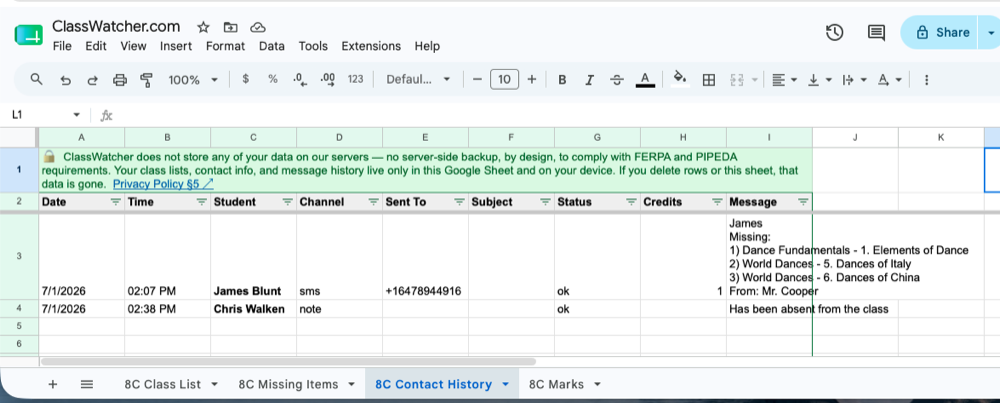
Contact history exported to Sheets — date, student, channel and the message itself.
That record is what makes the next conversation easy, whether it's a follow-up call in December or a report-card comment you need to justify.
Two things worth being precise about. Texting through ClassWatcher is one-way — parents receive your message, but replies don't come back through the app, so tell families how to reach you if they want to respond. And the contact log is exported when you ask for it, not silently synced somewhere in the background.
On the night
Preparation gets you the facts. The ten minutes still need running.
- Open with something specific and true. Not "he's a pleasure to have in class" — every parent has heard that and knows what it means. "He asked a genuinely good question about the lab last week" is worth more, and it's on your one-pager because you put it there.
- Give the missing list by name, not by count. "Three missing" invites an argument. "The cell project, the water infographic, and the term one health assignment" invites a plan.
- Say the number once. Parents remember tone far longer than percentages.
- End with one ask and write it down in front of them. The act of writing it makes it a commitment rather than a suggestion.
Afterwards
Follow up within a week, while the conversation is still real to everyone. A short message — the two assignments we discussed are now in, thanks for your help — costs you a minute and buys you a parent who answers the phone next time.
Then log it, and you've closed the loop: you'll walk into the next interview already knowing what was promised and whether it happened. If you're setting this up from scratch, watch lists are what keep the missing-work side current between now and then, and contacting parents about missing work covers the consent and wording side properly.
Why the prep starts long before the interview
Ontario interviews land in late October and November, so the useful prep window opens in the second half of October. Most of what makes one go well, though, is decided weeks earlier. The night before, you can only read back what is already there — you cannot reconstruct a term of it. A watch list built at the start of term is simply the list of pages worth checking; running a scan against it tells you who is missing what across all of them in one pass, instead of opening each assignment and quiz page in turn and trying to hold the answer in your head.
Contact history is the other half, and it is the part that changes the tone of the conversation most. "We have been in touch about this twice already this term" lands very differently from "I think we may have said something at some point." That sentence is only available to you if somebody wrote it down at the time — which is the real argument for logging a contact when you make it rather than when you need it. Importing a class list and choosing what to watch takes a few minutes at the start of a term and almost none once it is running, and the first-week setup guide covers it.
The underlying advice holds whatever you use to do it: prep by student rather than by assignment, know what is missing by name, and write down what you already said to the family.