ClassWatcher vs Brightspace Intelligent Agents
Both can tell a student they haven't submitted. Only one shows you who's missing while you're looking, covers quizzes and assignments in one pass, and reaches a parent by text. Here's the honest side-by-side, including the things Intelligent Agents do better.
Works with any D2L Brightspace school · Chrome on a computer · Free until October 1, 2026 · Written by a Brightspace teacher, September 2026
The short version
- Intelligent Agents are a scheduler inside each Brightspace course. You set a rule ("no submission to this folder"), a schedule, and an email; the agent runs unattended and emails whoever matches at that moment. Included with Brightspace, but you need the Manage Agents permission from your administrator and a fresh agent for every course.
- ClassWatcher is a Chrome extension. Open the assignment or quiz page and it shows you who hasn't submitted; text or email the parent or the student from the same screen; keep a record of who you contacted. You supply the parent contacts, and the scan runs when you ask.
- Together: let the agent send the Sunday-night reminder to students. Use ClassWatcher for the Monday-morning look and the call home that follows.
What Intelligent Agents actually do
An Intelligent Agent lives under Course Admin → Intelligent Agents in a single course. You give it criteria, an action, and a schedule:
- Criteria: login activity (hasn't logged in for n days), course activity (hasn't opened this course for n days), or any release condition, including no submission to an assignment folder, quiz not attempted, or a grade below a threshold.
- Action: send an email, change an enrolment or role, or do nothing and just record who matched.
- Schedule: none (you click Run Now), one-time, hourly, daily, weekly, monthly or annually. A Practice Run shows who would be caught without sending anything.
The email goes through Brightspace's own mail to the student's Brightspace address, using a template you write once with replacement strings such as {InitiatingUserFirstName}. It can be addressed to the student, to a fixed address such as your own, or, if your board has configured the Parent & Guardian tool, to the linked parents.
D2L's own documentation puts the key limit plainly: "Intelligent Agents do not continuously monitor user activity. Evaluation occurs only at execution time." The agent is a snapshot taken on a timer, not a live view.
Credit where it's due: for assignments, Brightspace also has a one-click Email Users Without Submissions button on the assignment's submissions page, no agent required. It's the fastest built-in way to nudge students about a single assignment. It doesn't exist for quizzes, which is where most of the agent-building starts.
Where teachers get stuck
Paraphrased from public questions on the D2L Brightspace Community, 2023 to 2026. No names, no schools.
- Assignments have an Email Users Without Submissions button. Quizzes don't, so I have to build an agent just to reach the students who haven't taken the quiz.Instructor, January 2025
- I want the agent to catch students who haven't submitted anything lately, not one specific assignment. I can't find a way to set that up.Instructor, November 2024
- Can the agent email parents as well as students?Asked repeatedly, 2024 to 2025. The answer from D2L staff: only if the board shows parents in the classlist, and most don't.
- It's sending reminders every hour even though nobody has submitted anything new.Instructor, February 2025
- Is there one page where a teacher can see all the missing or late assignments for the class?Instructor, March 2025
None of these are complaints about a broken tool. They're a tool being asked to do a job it wasn't built for: give a teacher a live, whole-class view of what's missing and a way to reach the family. That's the job ClassWatcher was built for.
Side by side
| Intelligent Agents | ClassWatcher | |
|---|---|---|
| Who can set it up | Anyone whose role has the Manage Agents permission, which only your Brightspace administrator can grant. If it isn't under Course Admin, you can't use it. | Any teacher who can install a Chrome extension. No Brightspace permission needed: it reads the pages you can already open. If your school manages Chrome centrally, IT may need to allow the extension. |
| What it checks | Login activity, course activity, and release conditions such as no submission to this folder or quiz not attempted. One agent covers one rule set in one course. | Every assignment and quiz page on your watch list, in one scan. Add pages by clicking Watch on them; keep a separate list for each class. |
| When it runs | On the schedule you set, from hourly to annually, or when you click Run Now. It evaluates only at that moment. | When you ask: click Scan, open a watched page, or click a student. Nothing runs in the background and nothing sends on its own. |
| Where you see who's missing | In the agent's run history under Course Admin, after the run. | On the Brightspace page itself: a missing-work box on assignment and quiz pages, and colour-coded badges beside names on the classlist. Also in the side panel, with a one-click report for any single student. |
| Quizzes | Via a release condition. The one-click Email Users Without Submissions button exists for assignments only. | Yes. Quizzes and assignments in the same scan and the same list. A quiz counts as missing until an attempt is completed. |
| Who it can reach | The student's Brightspace email. Parents only if your board has set up the Parent & Guardian tool and linked them, usually with a separate agent. Or a fixed address such as your own. | The parent or the student, using phone numbers and emails you enter or import from Google Sheets. Brightspace doesn't supply parent contacts, so you do. |
| Channels | Email only, through Brightspace mail. Recipients can't opt out of agent emails. | Text message or email. Texting is one-way; parents see your name and the message, and a reply of STOP opts them out automatically. |
| Who writes the message | You write one template. The agent sends it, unattended, to everyone who matches, every run or first time only. | You pick a preset or write your own, see the preview for each student, choose who gets it, then send. One family or the whole list, but always with you looking. |
| Record of who was contacted | The run history shows each run and who matched. | Every message is logged by student and date. See it per student, sort the class by days since last contact, add notes for phone calls, export to Google Sheets or CSV before interviews. |
| Setup per course and per term | A new agent per course, per rule. Copied courses arrive with the agent disabled, and classlist-linked conditions don't carry over. | Import the classlist once per class, add contacts, watch the pages you care about. Switch classes from the panel; it notices when you change courses. Basic covers one class, Pro covers all of them. |
| Cost | Included in your school's Brightspace licence. | Free through October 1, 2026. Then $8 CAD/month for one class or $19 CAD/month for unlimited. A text costs 1 credit, an email 0.2; plans include monthly credits. |
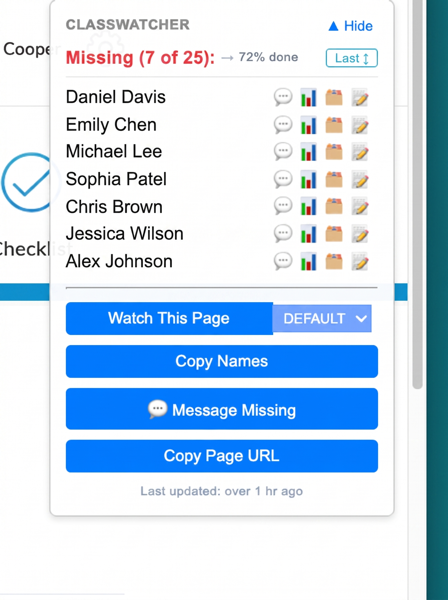
The missing-work box sits on the assignment page itself: who's missing, how many, and a Message Missing button.
When each one is the right tool
Reach for an Intelligent Agent when…
- The reminder should go out whether or not you're at a screen: "the quiz closes Tuesday", every Sunday at six.
- You teach an asynchronous or self-paced course and want inactivity nudges without thinking about them.
- The job is enrolment or role changes, or a follow-up when someone completes a module.
- A one-line email to the student is the whole task, and email is enough.
Reach for ClassWatcher when…
- You need to know who's missing right now, across assignments and quizzes, without opening a report.
- The person who needs to hear about it is a parent, and your board hasn't wired parents into Brightspace.
- You want to look before you send: the extension you granted, the paper hand-in, the one who submitted at 11:58.
- Report cards or interviews are coming and you'll be asked "when did you last contact home?"
- A text will reach the family tonight; a Brightspace email might not be read this week.
Using both
This is how it fits together in a real week. The agent handles the routine nudge; you handle the judgment.
- Set one agent per course for the routine reminder. Criteria: role = Learner, release condition no submission to folder for the assignment. Schedule: weekly, Sunday evening. Repetition: every time the criteria are met. Run a Practice Run first so you can see who it would catch.
- Monday morning, open the assignment page. ClassWatcher's box lists who's still missing; the classlist shows a badge beside each name. Click a student to see everything they're missing and the last time anyone contacted home.
- Message the parents of anyone still missing after the agent's reminder. Pick the missing-items preset, check the preview for each student, send by text or email. The student already had the automated nudge; the family gets a human one.
- Log the phone calls. Add a note for the conversations that happened in person or by phone, so the Last Contacted screen is complete before interview night.
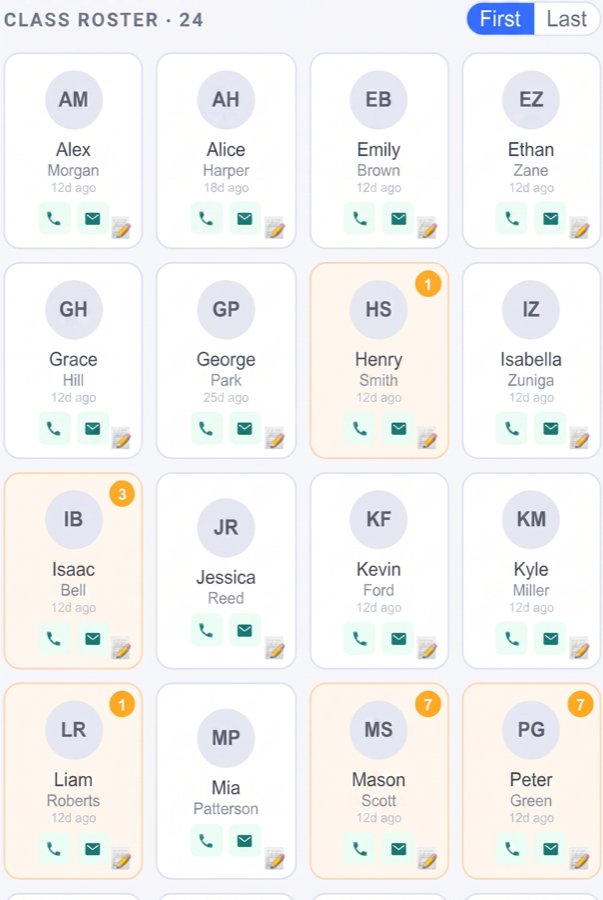
The Last Contacted screen: every student with how long it has been since anyone reached home, and the overdue families highlighted, so nobody is a surprise at interviews.
Two things worth being precise about. A due date that has passed isn't automatically a missing assignment: extensions, accommodations and paper submissions all show as un-submitted online, in both tools. Read either list as a prompt to check, not a verdict. And texting through ClassWatcher is one-way: parents receive your message, but replies don't come back through the app, so tell families how to reach you.
Frequently asked
Do I need my Brightspace administrator to use either one?
Intelligent Agents need the Manage Agents permission on your role, which only your organization's Brightspace administrator can grant. If Intelligent Agents isn't listed under Course Admin, you don't have it.
ClassWatcher needs no Brightspace permission at all. It's a Chrome extension that reads the assignment and quiz pages you can already open. If your school manages Chrome centrally, IT may need to allow the extension to be installed; the page for IT lists exactly what it requests.
Can Intelligent Agents email parents?
Only if your board has set up Brightspace's Parent & Guardian tool and linked each parent to their child. The agent email can then be addressed to {InitiatingUserParents}, usually as a separate agent from the one that emails students. Most institutions haven't configured this, which is why the question keeps coming up on the D2L Community.
ClassWatcher takes the other route: you enter or import the parent's phone number and email yourself, and it texts or emails them directly. Contacting parents about missing work covers consent and wording.
Does ClassWatcher replace Intelligent Agents?
No. They do different jobs. An agent sends an unattended, scheduled email to students who match a rule. ClassWatcher shows you who hasn't submitted while you're looking at the page, across assignments and quizzes, and lets you text or email a parent or student with a message you've seen first. Many teachers keep an agent running for the routine reminder and use ClassWatcher for the follow-up.
Does ClassWatcher monitor Brightspace in the background?
No. A scan runs when you ask for one: when you click Scan, open a page on your watch list, or click a student. Nothing runs on a schedule and nothing sends on its own. That's deliberate: every message goes out because a teacher decided it should.
Where does ClassWatcher's data live?
Your class lists, watch lists and the parent contact details you enter stay in your browser's extension storage. ClassWatcher's servers never receive a roster, a grade, or a piece of student work.
Two things are stored on the server: scan history as counts per page, with no student names, and a log of the messages you send, which includes the student's name and the message text, kept for 365 days so your contact history follows you between devices. Servers are hosted in the United States. The privacy page has the full list.
What does ClassWatcher cost?
It's free through October 1, 2026. After that, Basic is $8 CAD per month for one class and Pro is $19 CAD per month for unlimited classes and watched pages. Each plan includes monthly messaging credits; a text costs one credit and an email a fifth of a credit. Intelligent Agents are included in your school's Brightspace licence at no extra cost.
Intelligent Agents details are taken from D2L's own documentation: About Intelligent Agents and Set up Intelligent Agents, as read in September 2026. Brightspace and D2L are trademarks of D2L Corporation; ClassWatcher is an independent product and is not affiliated with D2L.
See who's missing the next time you open Brightspace
Install ClassWatcher, import your class from the classlist page, and the missing-work box shows up on your next assignment or quiz page. Parent texting is one tap further.
Add to Chrome, FreeWorks with any D2L Brightspace school · Free until October 1, 2026 · No credit card
Related reading: how to see who hasn't submitted in Brightspace · what a watch list is · parent-teacher interview prep